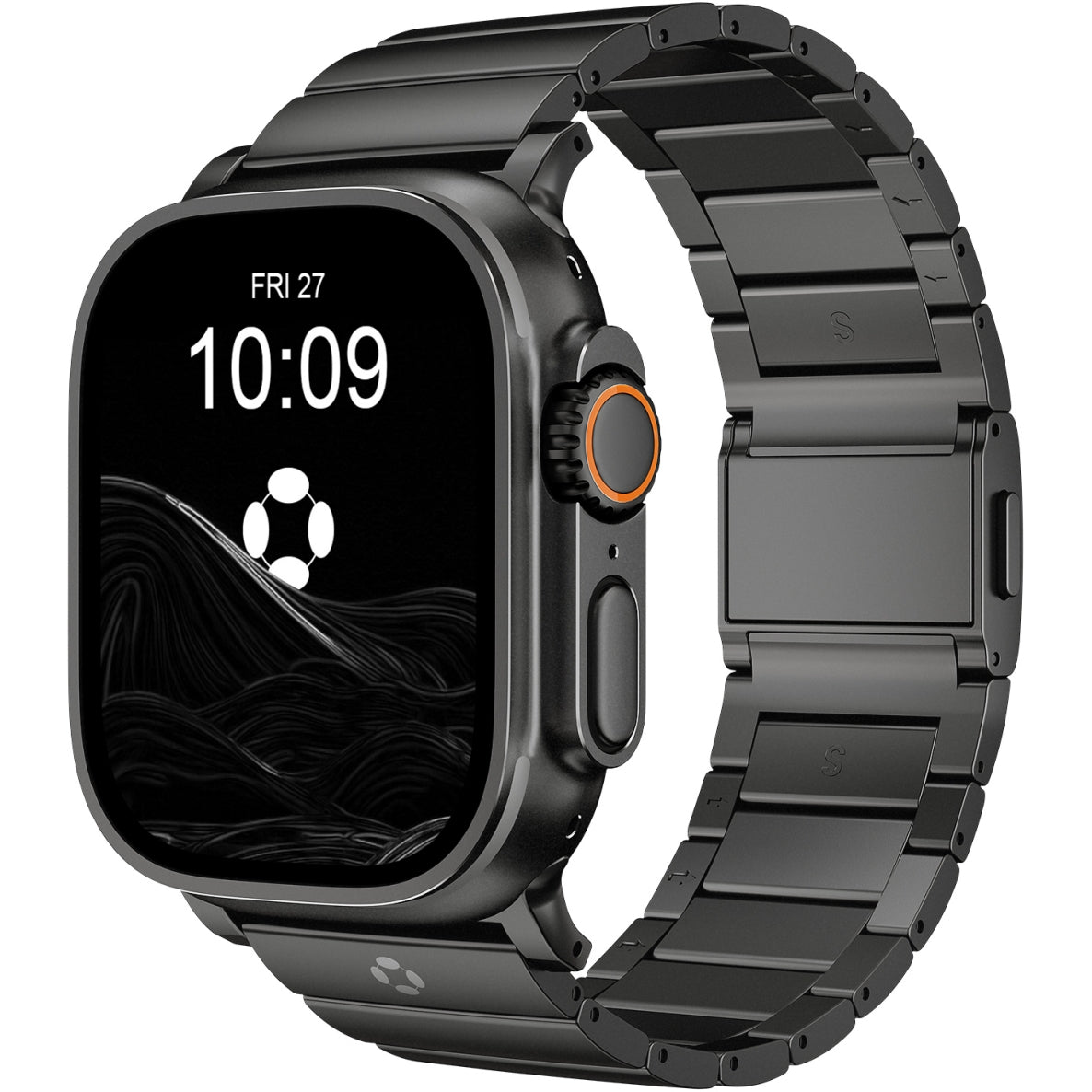

Whether you’re preparing to sell your Apple Watch, hand it down to someone else, or simply want to clear it of all personal data, knowing how to properly wipe or factory reset your Apple Watch is essential. A factory reset will erase all content and settings, returning the watch to its original state, just like new.
In this guide, we will walk you through the process of wiping your Apple Watch.
Why Wipe Your Apple Watch?
There are several reasons you might want to wipe your Apple Watch, including:
-
Selling or Trading It In: When you’re upgrading to a new model or trading your watch, wiping it ensures all your personal information is removed.
-
Fixing Issues: A fresh start can help resolve persistent issues such as slow performance, glitches, or app crashes.
-
Handing It Down: If you’re giving your Apple Watch to someone else, wiping it ensures that the device is clean and ready for a new user.
-
Restoring to Factory Settings: If you just want to start fresh, wiping your watch will clear out all data and settings.
What Happens When You Wipe Apple Watch?
When you wipe your Apple Watch, you perform a factory reset, which erases all content from your watch. This includes:
-
Apps
-
Settings
-
Messages
-
Photos
-
Health data
-
Watch faces
After wiping, the Apple Watch will be restored to its original factory state, as if it were just taken out of the box. It will no longer be paired with your iPhone.
Note: Be sure to back up any important data before wiping your Apple Watch, as you cannot recover the data once it’s erased.
How to Wipe Apple Watch Using the Watch Itself
If you don’t have access to the paired iPhone or prefer to wipe the watch directly, follow these steps:
Step-by-Step Instructions
-
Ensure Your Apple Watch Is Charged: Before starting the reset process, make sure your Apple Watch has at least 50% battery or is plugged in.
-
Open Settings: On your Apple Watch, press the Digital Crown to open the Apps screen.
-
Go to Settings: Tap the Settings app, then scroll down and tap General.
-
Reset: Scroll to the bottom and select Reset.
-
Erase All Content and Settings: Tap Erase All Content and Settings.
-
Confirm the Reset: You may be asked to enter your Apple ID password to disable Activation Lock. This is important if you plan to give or sell the watch to someone else.
-
Wait for the Reset to Complete: Your Apple Watch will begin erasing all data. This process may take several minutes.
Once it’s finished, your Apple Watch will restart, and you’ll see the initial setup screen, just like it was when you first got it.
How to Wipe Apple Watch Using Your iPhone
If your Apple Watch is paired with your iPhone, you can wipe it from the Watch app on your iPhone. Here’s how:
-
Open the Watch app: Launch the Watch app on your iPhone.
-
Select Your Watch: In the Watch app, tap the My Watch tab, then select the watch you want to erase.
-
Unpair Apple Watch: Tap i next to your Apple Watch, then select Unpair Apple Watch.
-
Confirm the Unpairing: You may need to enter your Apple ID password to disable Activation Lock.
-
Erase All Content: Once unpaired, your Apple Watch will automatically wipe itself clean.
Once the process is complete, your Apple Watch will be restored to factory settings and can be set up again or handed over to someone else.
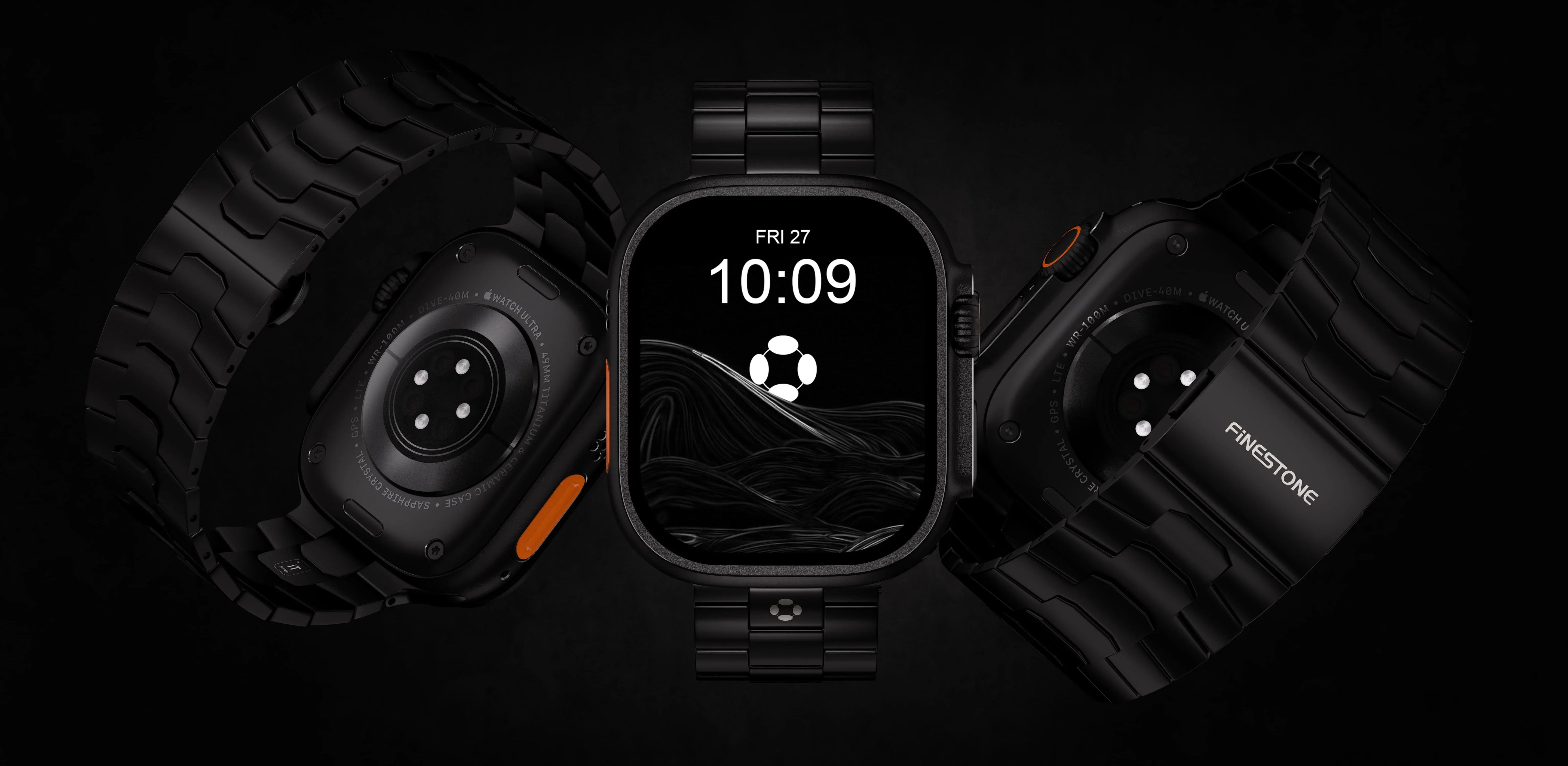
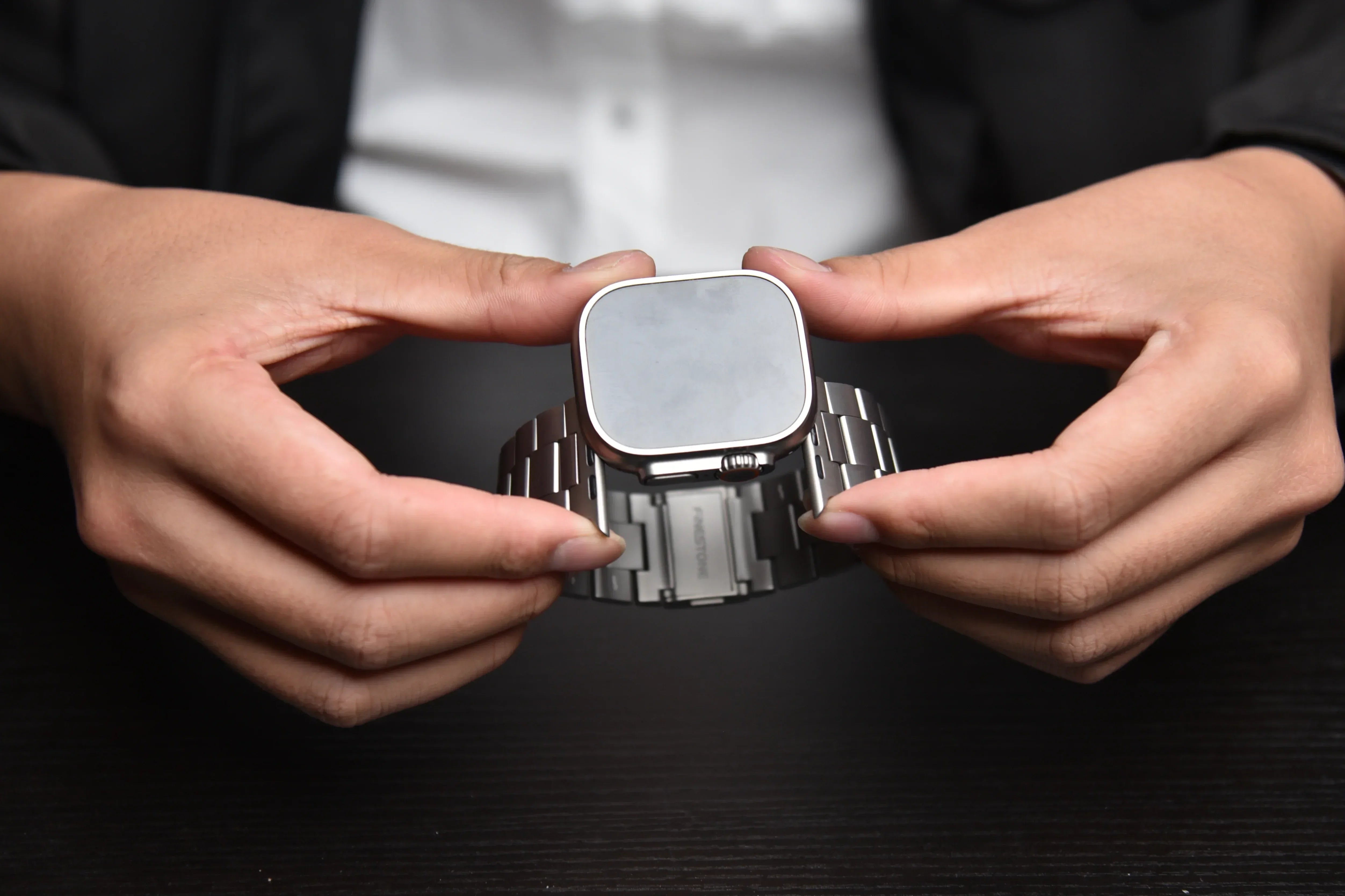
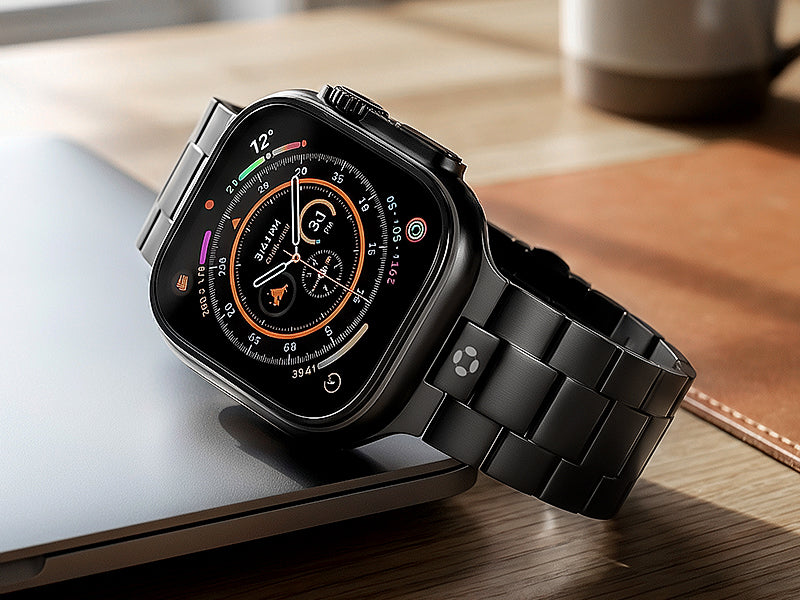
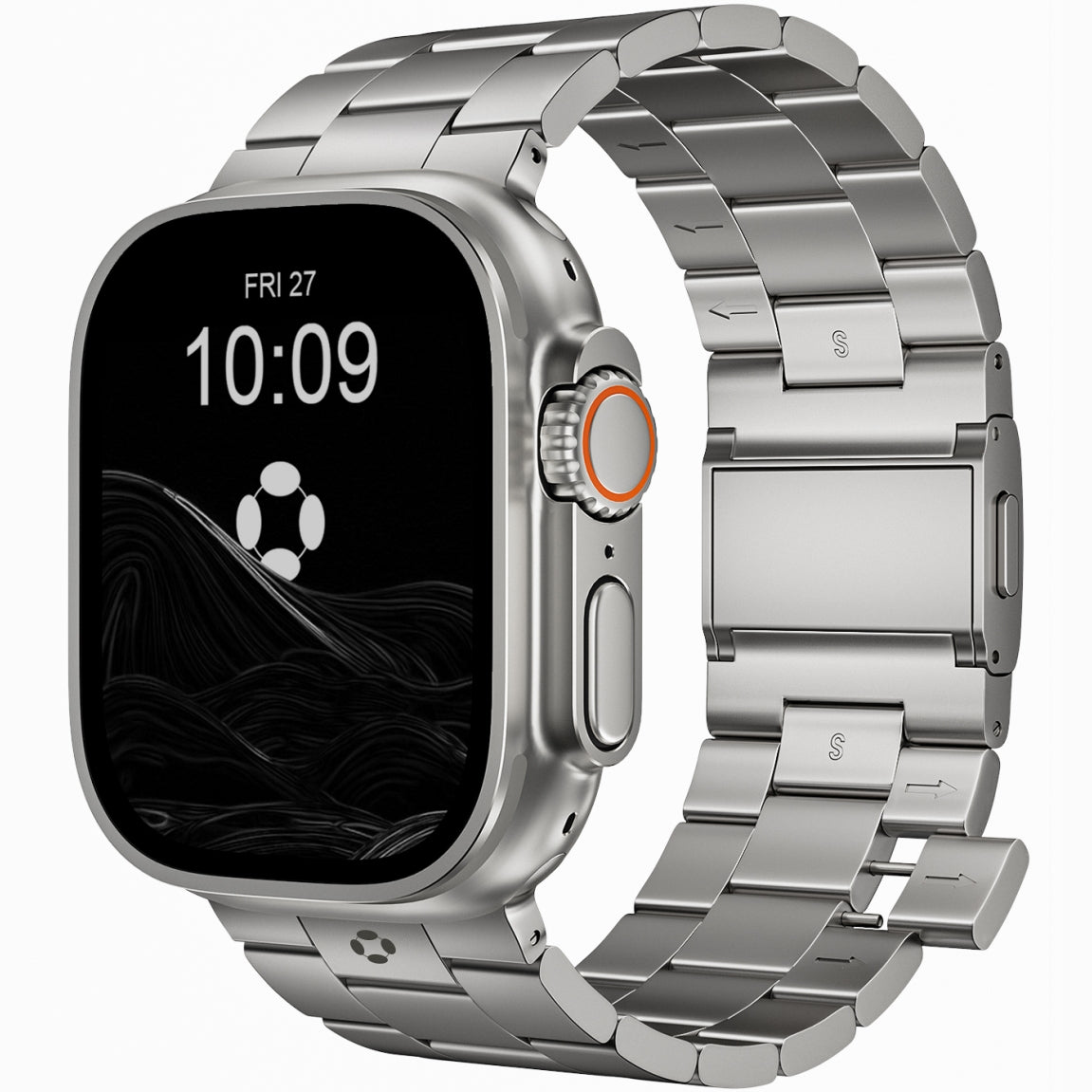
How to Wipe Your Apple Watch While Keeping Your Finestone Titanium Band Safe
If you’re worried about damage to your Finestone titanium Apple Watch band during the reset process, rest assured. Titanium bands are highly resistant to wear, corrosion, and scratching. Still, during the wiping process, it's a good idea to remove your watch if you want to prevent any unintentional damage.
-
Tip: Titanium is a durable material, so Finestone titanium Apple Watch bands will continue to look sleek and polished even after frequent use. If you prefer to avoid any potential scratches, use a soft cloth to clean the band gently while performing the reset.

What to Do After Wiping Your Apple Watch
After wiping your Apple Watch, you can choose to:
-
Set up as new: If you plan to keep the watch, follow the on-screen instructions to set it up again.
-
Sell or trade it: The watch is now ready for its next user, with all of your personal information wiped clean.
-
Restore from backup: If you were backing up data, you can restore from your most recent iCloud or iTunes backup.