
If your Apple Watch is frozen, unresponsive, stuck on the Apple logo, or not reacting to touch, a hard reset (also called a force restart) is often the quickest solution. Many Apple Watch users don’t realize how useful—and safe—this method can be when basic troubleshooting fails.
In this complete guide, you’ll learn what a hard reset is, when to use it, how to do it properly, and what to try if it doesn’t work.
What Is a Hard Reset on Apple Watch?
A hard reset forces your Apple Watch to shut down and restart using the hardware buttons.
It is different from:
-
Normal restart (done through the on-screen menu)
-
Factory reset (which erases all data)
✅ A hard reset does NOT delete:
-
Apps
-
Data
-
Settings
-
Watch pairings
It simply refreshes the system.
When Should You Hard Reset an Apple Watch?
You should consider a hard reset if your Apple Watch:
-
Is frozen or has a black screen
-
Won’t respond to touch or buttons
-
Is stuck on the Apple logo
-
Has apps crashing repeatedly
-
Won’t turn off normally
-
Becomes extremely slow or unresponsive
⚠️ Do NOT hard reset your Apple Watch while it’s updating watchOS, as this can cause software corruption.
How to Hard Reset Apple Watch (All Models)
This method works on:
-
Apple Watch Series 3–9
-
Apple Watch SE (all generations)
-
Apple Watch Ultra & Ultra 2
Step-by-Step Instructions
-
Press and hold both:
-
The Side Button
-
The Digital Crown
-
-
Keep holding both buttons at the same time
-
After about 10–15 seconds, the screen will go black
-
Release both buttons when the Apple logo appears
Your Apple Watch will restart automatically.
✅ That’s it—no data loss involved.
Hard Reset vs Normal Restart vs Factory Reset
| Action | What It Does | Data Loss |
|---|---|---|
| Normal Restart | Shuts down via menu | ❌ No |
| Hard Reset | Forces reboot via buttons | ❌ No |
| Factory Reset | Erases all content & settings | ✅ Yes |
If your Apple Watch is responsive, always try a normal restart first before using a hard reset.
What If a Hard Reset Doesn’t Work?
If your Apple Watch still isn’t functioning properly, try the following steps:
1. Charge Your Apple Watch
A low battery can cause freezing or boot loops. Charge it for at least 30 minutes, then try again.
2. Unpair and Re-Pair (Factory Reset)
If the issue persists:
-
Unpair the Apple Watch from your iPhone
-
Set it up again as new or restore from backup
This should be your last resort.
3. Update watchOS
Software bugs are often fixed in updates. After restarting, check for the latest watchOS version.
Does the Watch Band Affect Resetting?
The band doesn’t affect the reset itself, but bulky or poorly designed bands can make it harder to press both buttons at once.
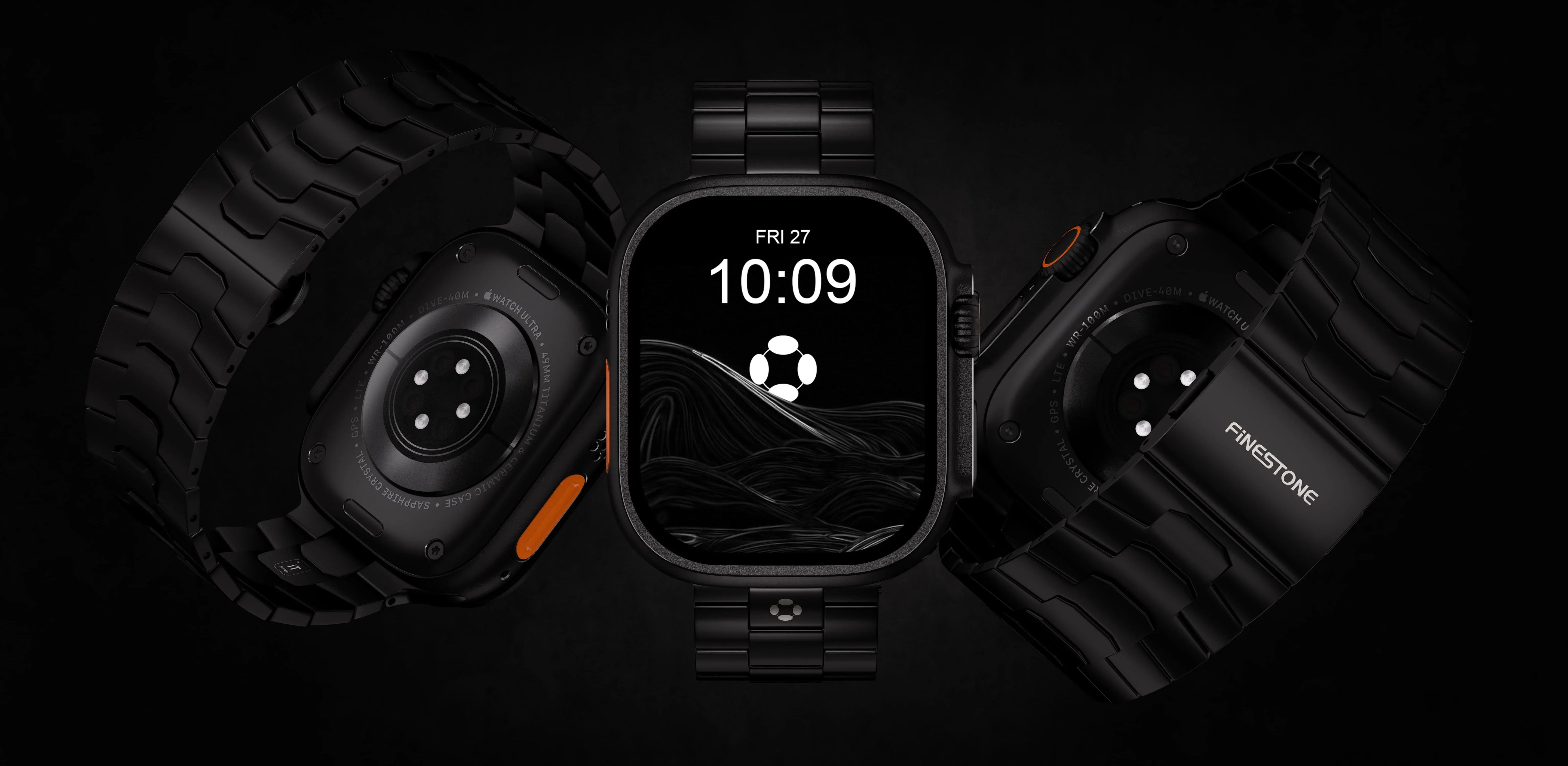
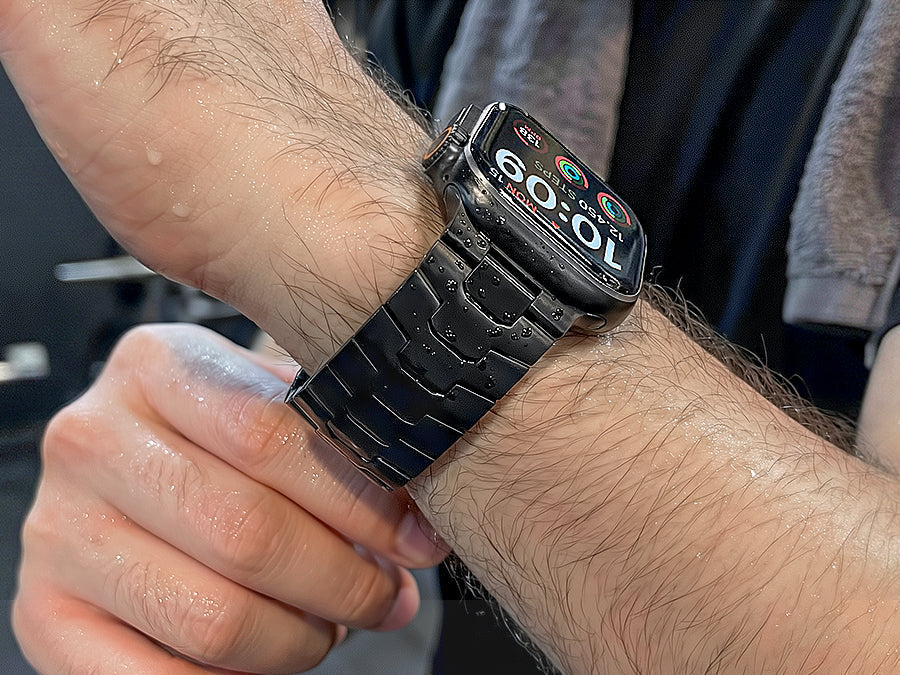
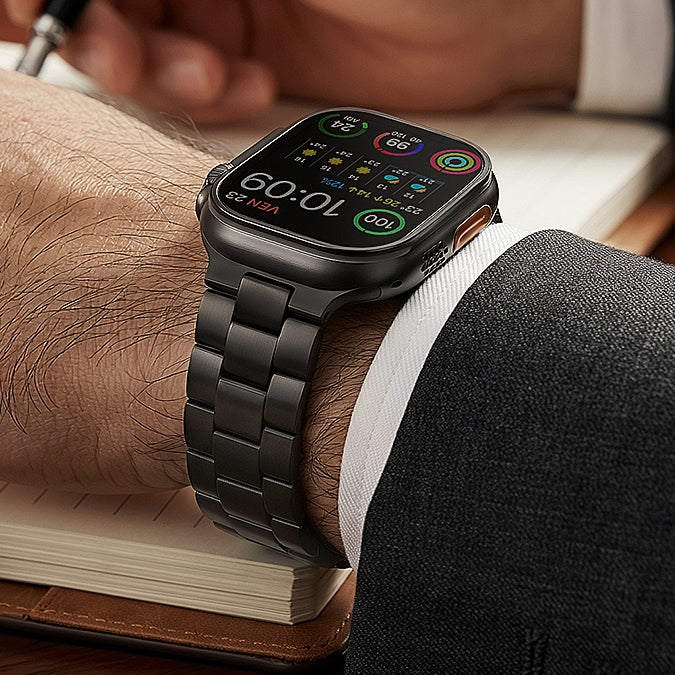
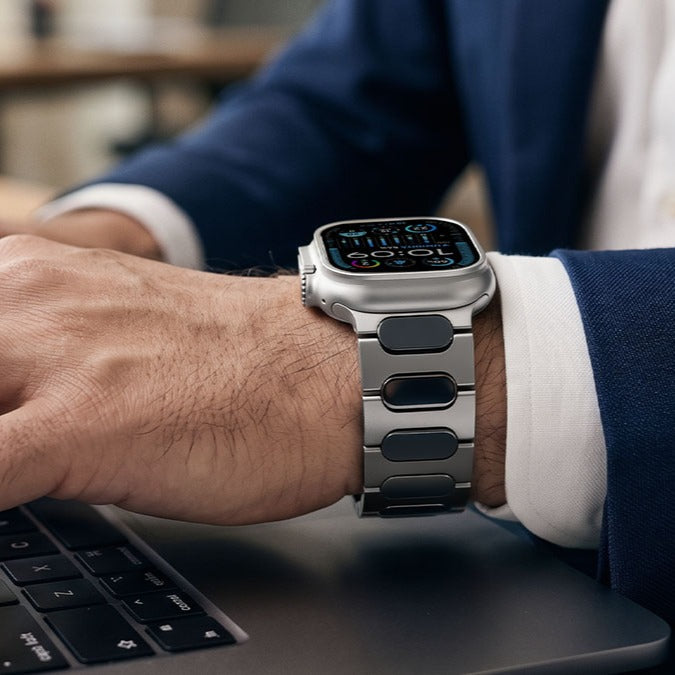
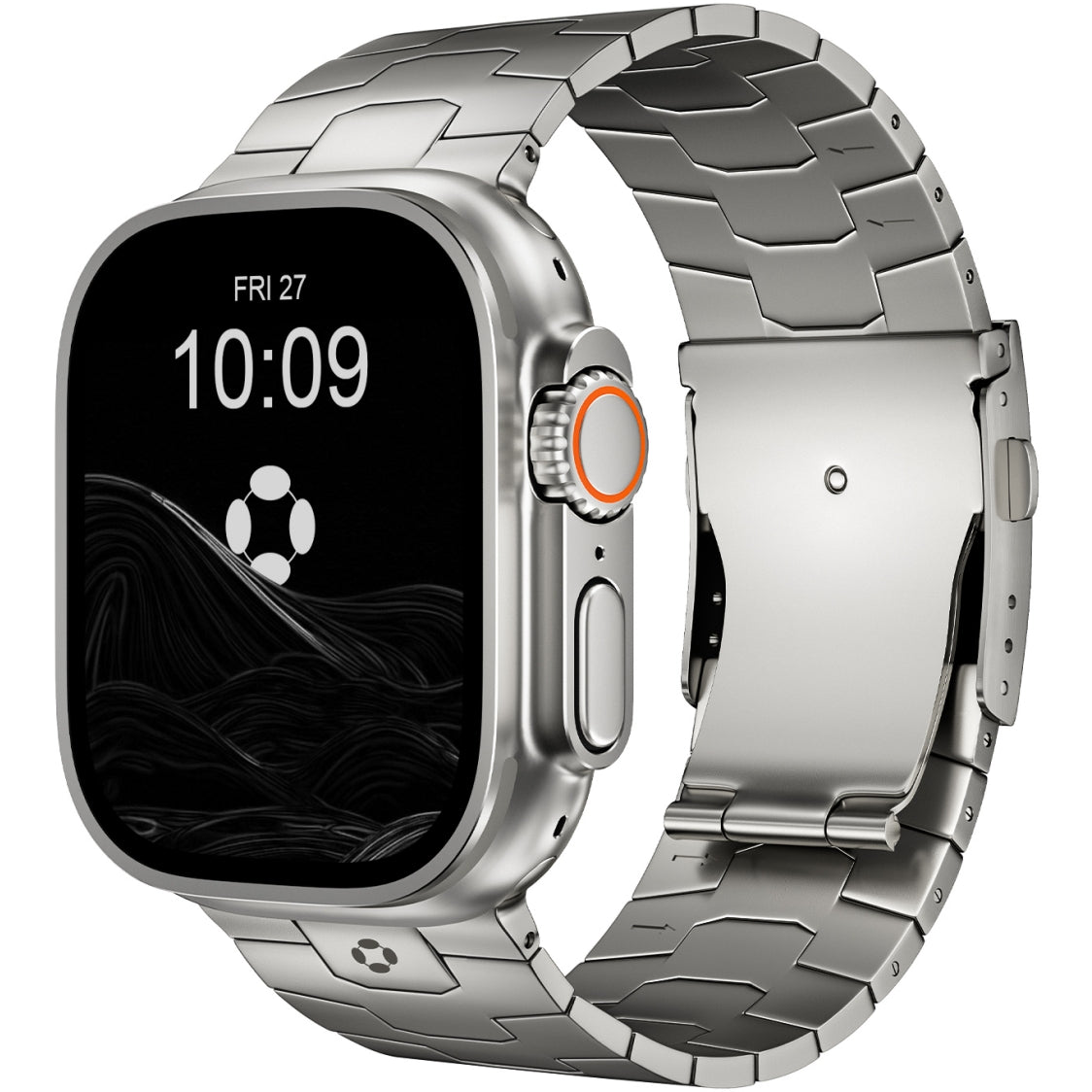
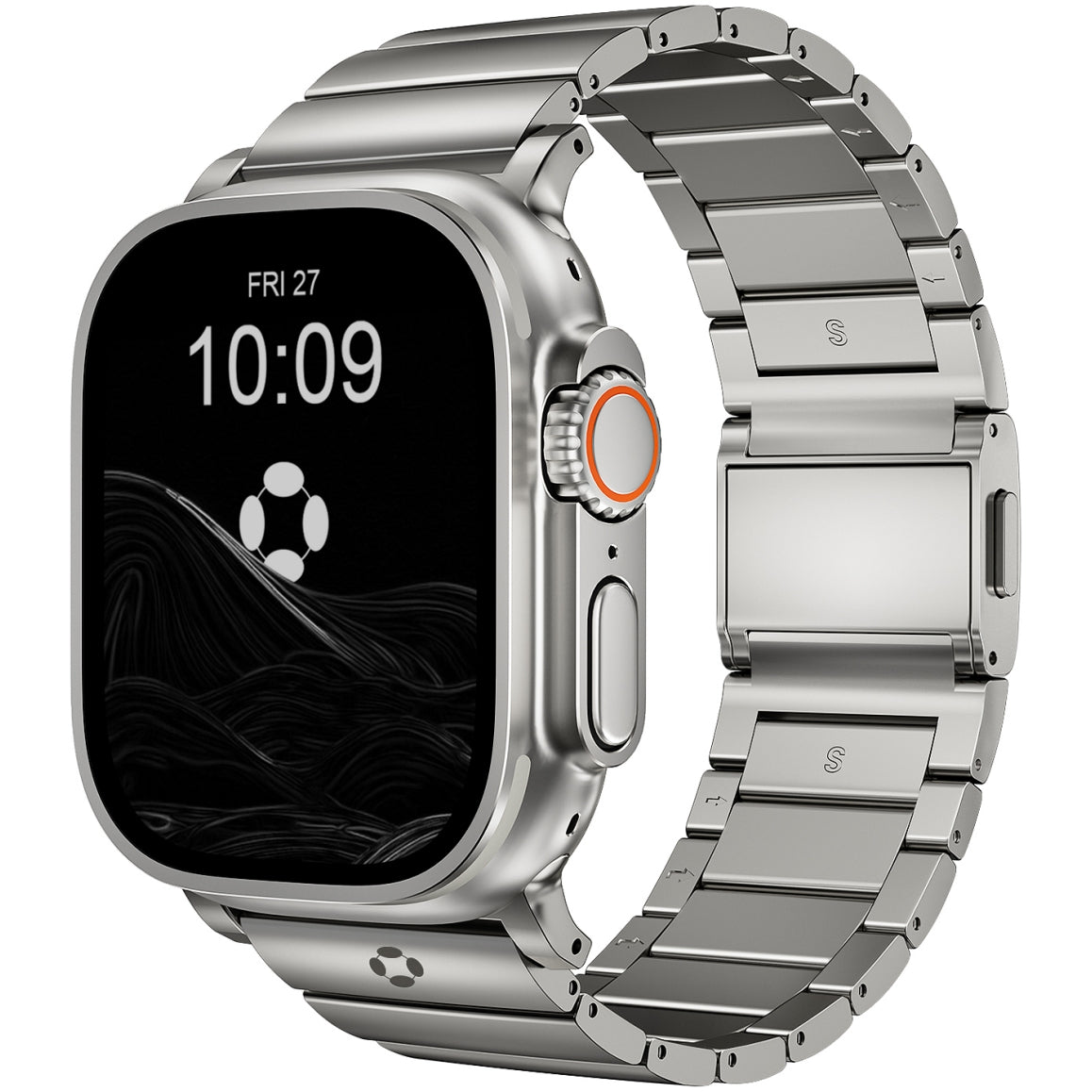
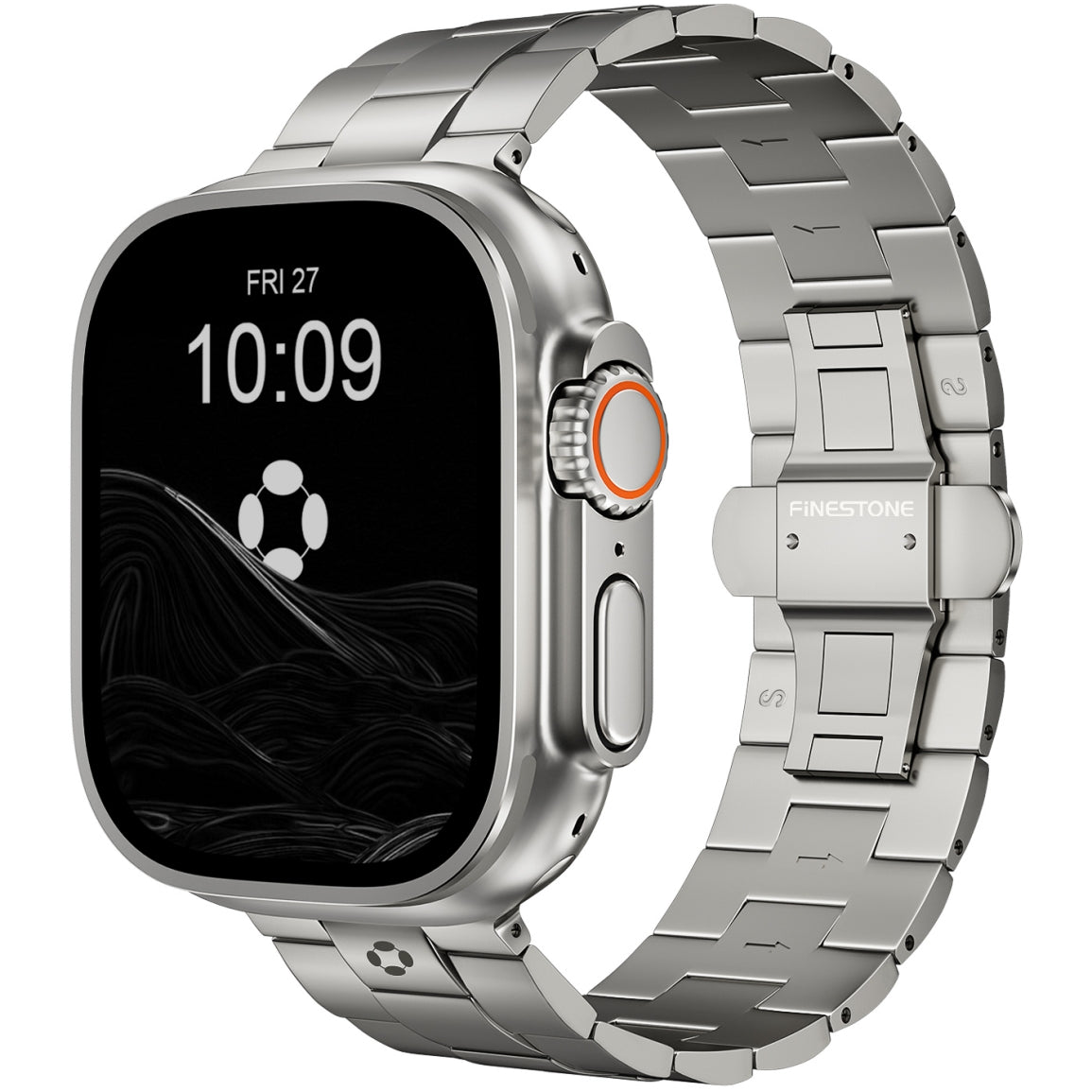
Well-designed metal bands—such as Finestone titanium Apple Watch bands—maintain clear button access while remaining lightweight and comfortable, making everyday use and troubleshooting easier.

Common Hard Reset Questions (FAQ)
Does a hard reset delete my data?
No. A hard reset only restarts the system.
How often is it safe to hard reset?
Occasionally is fine. Frequent resets may indicate a deeper issue.
Can I hard reset without buttons?
No. A hard reset requires both the Digital Crown and Side Button.
Will a hard reset fix battery drain?
Sometimes. If a background process is stuck, a hard reset can help.