
Battery life is one of the most common concerns among Apple Watch users. While the device offers powerful features such as health tracking, notifications, GPS, and app connectivity, these capabilities can quickly drain the battery if not managed properly.
Most Apple Watch models provide around 18–36 hours of battery life, depending on usage. However, by adjusting a few key settings, you can significantly extend how long your watch lasts throughout the day.
In this complete guide, we’ll explore the best Apple Watch settings to improve battery life, along with practical habits that help your watch stay powered longer without sacrificing essential features.
Understanding What Drains Apple Watch Battery
Before adjusting settings, it’s helpful to understand what consumes the most battery on the Apple Watch.
The main battery drains typically include:
-
Always-On Display
-
Frequent notifications
-
Background app refresh
-
Continuous heart rate monitoring
-
GPS usage during workouts
-
High screen brightness
-
Cellular connectivity (on cellular models)
By optimizing these areas, you can noticeably improve battery performance.
1. Turn Off Always-On Display
The Always-On Display feature keeps the watch face visible even when your wrist is down. While convenient, it constantly uses power.
Turning it off can significantly extend battery life.
To disable it:
-
Open Settings on your Apple Watch
-
Tap Display & Brightness
-
Select Always On
-
Toggle it off
You’ll still be able to wake the screen simply by raising your wrist or tapping the display.
2. Reduce Screen Brightness
The Apple Watch screen is bright and vivid, but high brightness levels consume more battery.
Lowering brightness slightly can extend battery life without affecting readability.
To adjust brightness:
-
Go to Settings
-
Tap Display & Brightness
-
Lower the brightness level
Even reducing brightness by one level can make a noticeable difference over a full day.
3. Limit Background App Refresh
Many apps refresh data in the background, which can quietly drain battery throughout the day.
Disabling background refresh for unnecessary apps can improve battery efficiency.
To change this setting:
-
Open the Watch app on iPhone
-
Tap General
-
Select Background App Refresh
-
Turn off apps that don’t need constant updates
Focus on keeping background refresh active only for essential apps like weather or navigation.
4. Reduce Notifications
Every notification wakes the screen and triggers vibrations or sounds, which uses battery.
If you receive frequent alerts from social media or messaging apps, battery drain increases quickly.
To optimize notifications:
-
Disable non-essential app notifications
-
Allow alerts only from important apps
-
Use notification summaries when possible
This not only improves battery life but also reduces distractions during the day.
5. Disable “Wake on Wrist Raise” (Optional)
When Wake on Wrist Raise is enabled, the display lights up every time you move your wrist. This can happen dozens or even hundreds of times per day.
To disable it:
-
Go to Settings
-
Tap Display & Brightness
-
Turn off Wake on Wrist Raise
You can still wake the screen by tapping the display or pressing the Digital Crown.
6. Turn Off Unused Health Features
Apple Watch health sensors run frequently throughout the day. While useful, some features may not be necessary for every user.
Examples include:
-
Blood oxygen monitoring
-
Environmental sound monitoring
-
Frequent heart rate alerts
If you rarely use these features, disabling them can help conserve battery.
7. Use Low Power Mode When Needed
Low Power Mode is designed to extend battery life by reducing certain background activities and visual effects.
When enabled, the watch may temporarily limit:
-
Background sensor readings
-
Automatic app updates
-
Some visual animations
This feature is especially useful during travel, long workouts, or busy days when charging may not be convenient.
8. Optimize Workout Settings
Workouts using GPS, heart rate monitoring, and music streaming can quickly drain battery.
To conserve power during workouts:
-
Download music directly to the watch instead of streaming
-
Turn off unnecessary sensors
-
Use shorter GPS tracking sessions when possible
If you frequently exercise outdoors, these adjustments can make a big difference.
9. Maintain Good Charging Habits
Battery health also depends on how the watch is charged and maintained.
Helpful charging habits include:
-
Avoid letting the battery drop to 0% frequently
-
Charge regularly throughout the day if needed
-
Keep the watch software updated for battery optimizations
Newer Apple Watch models support fast charging, allowing quick battery boosts in short periods.
10. Choose Comfortable Accessories for Daily Wear
While watch bands don’t directly affect battery life, they influence how consistently people wear their device. Comfortable bands make it easier to wear the watch longer, which helps users manage charging routines more efficiently.
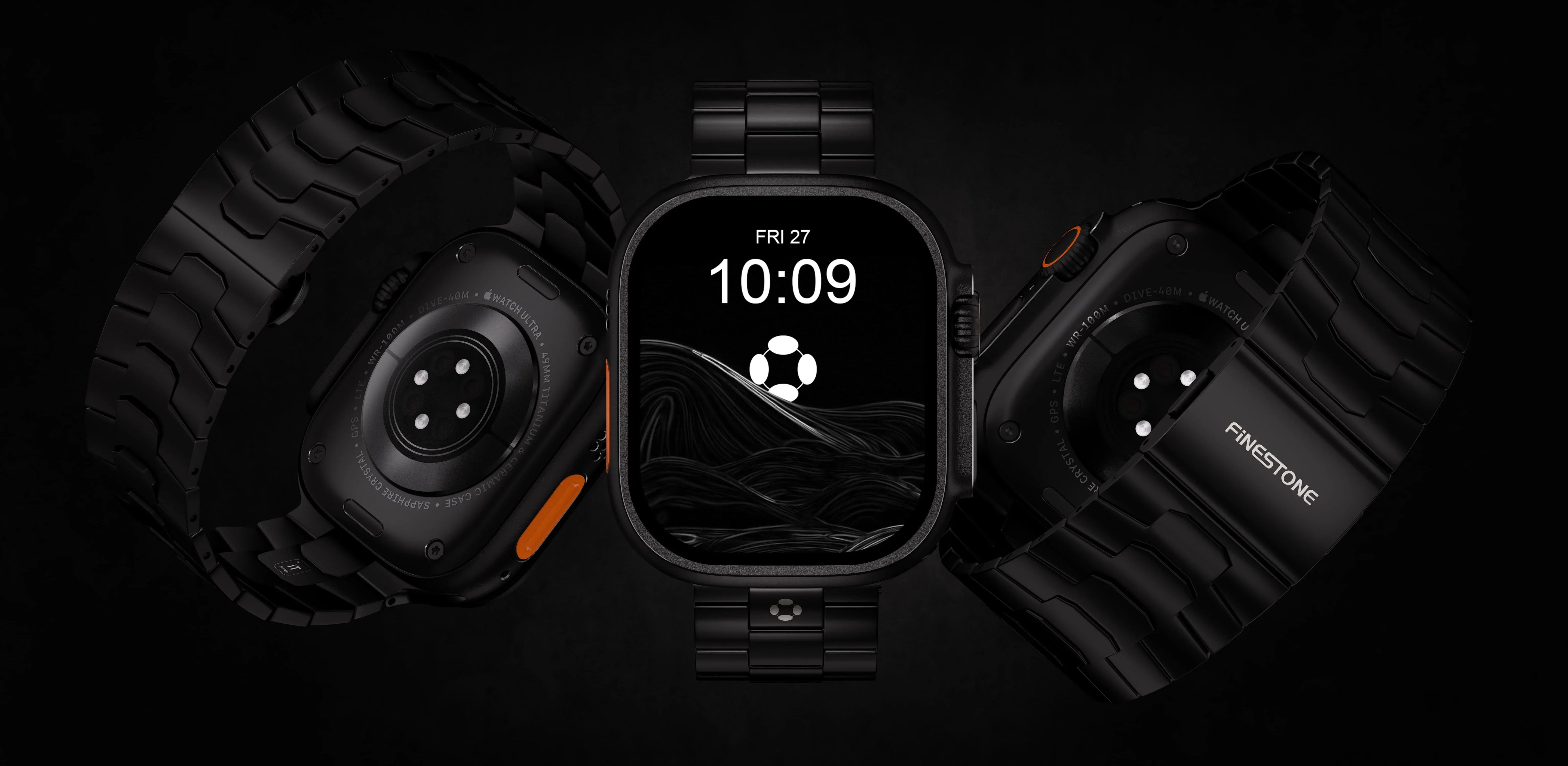
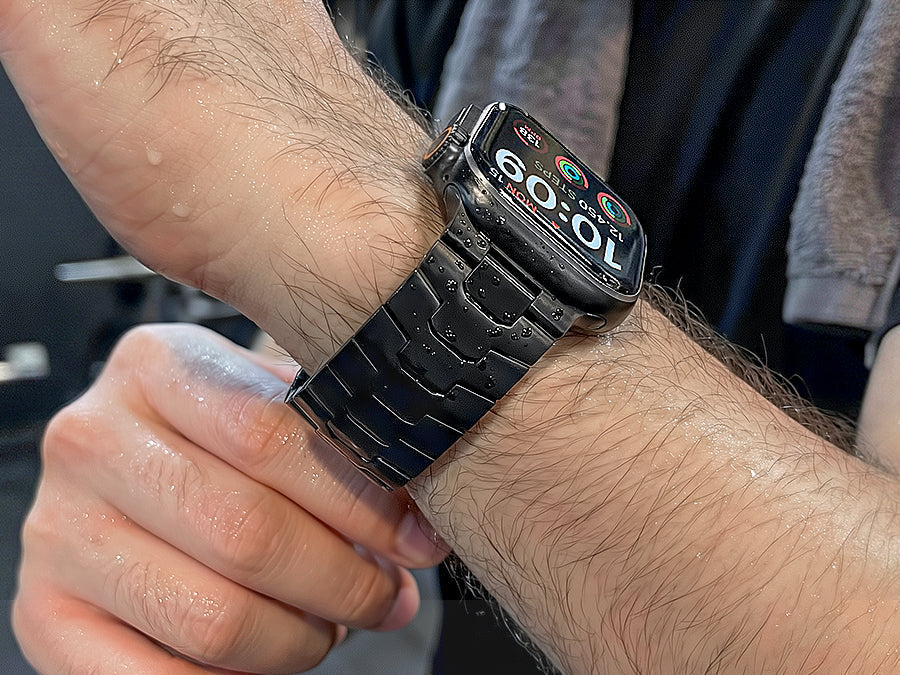
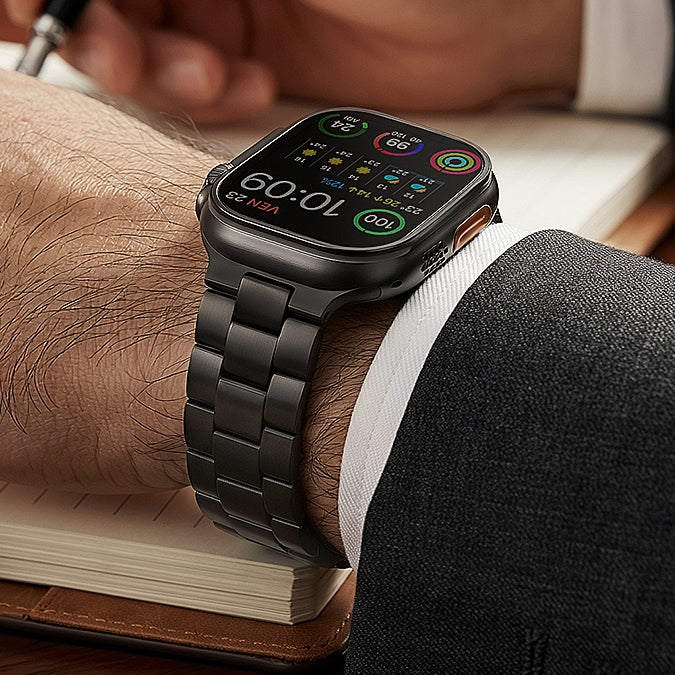
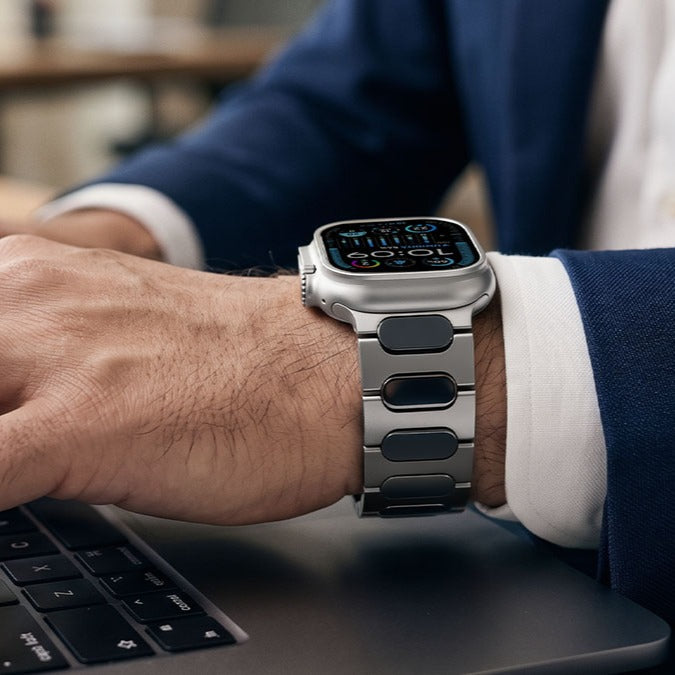
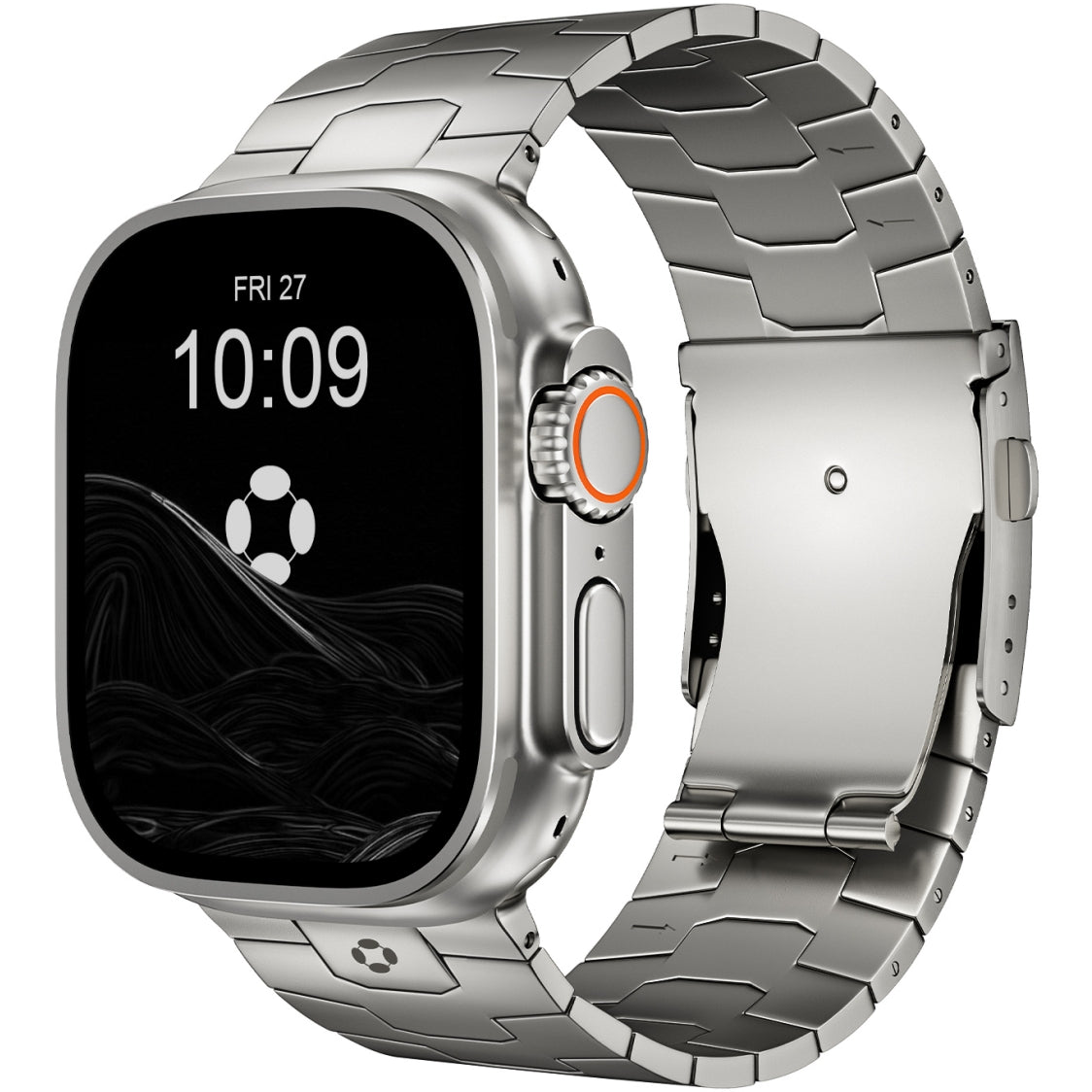
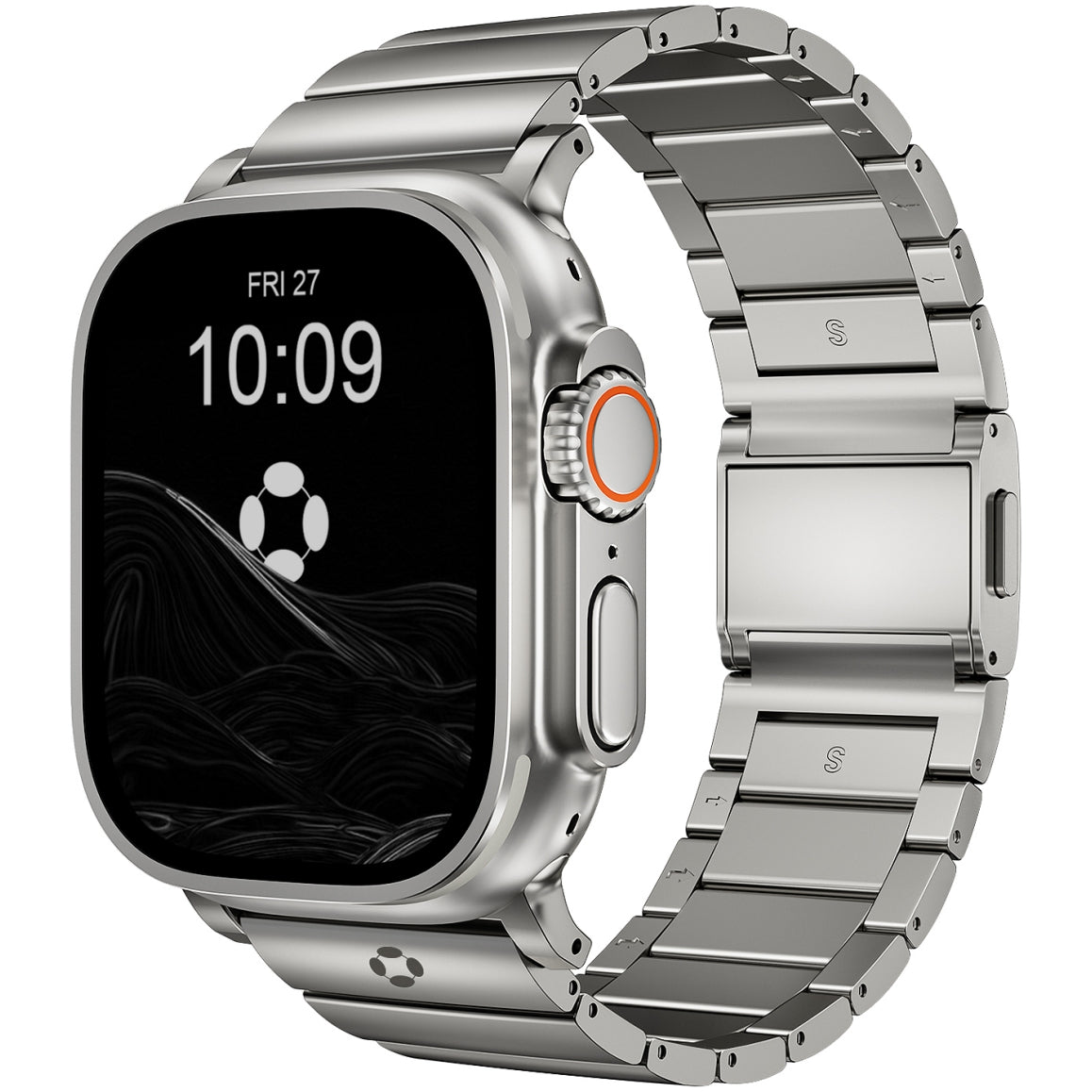
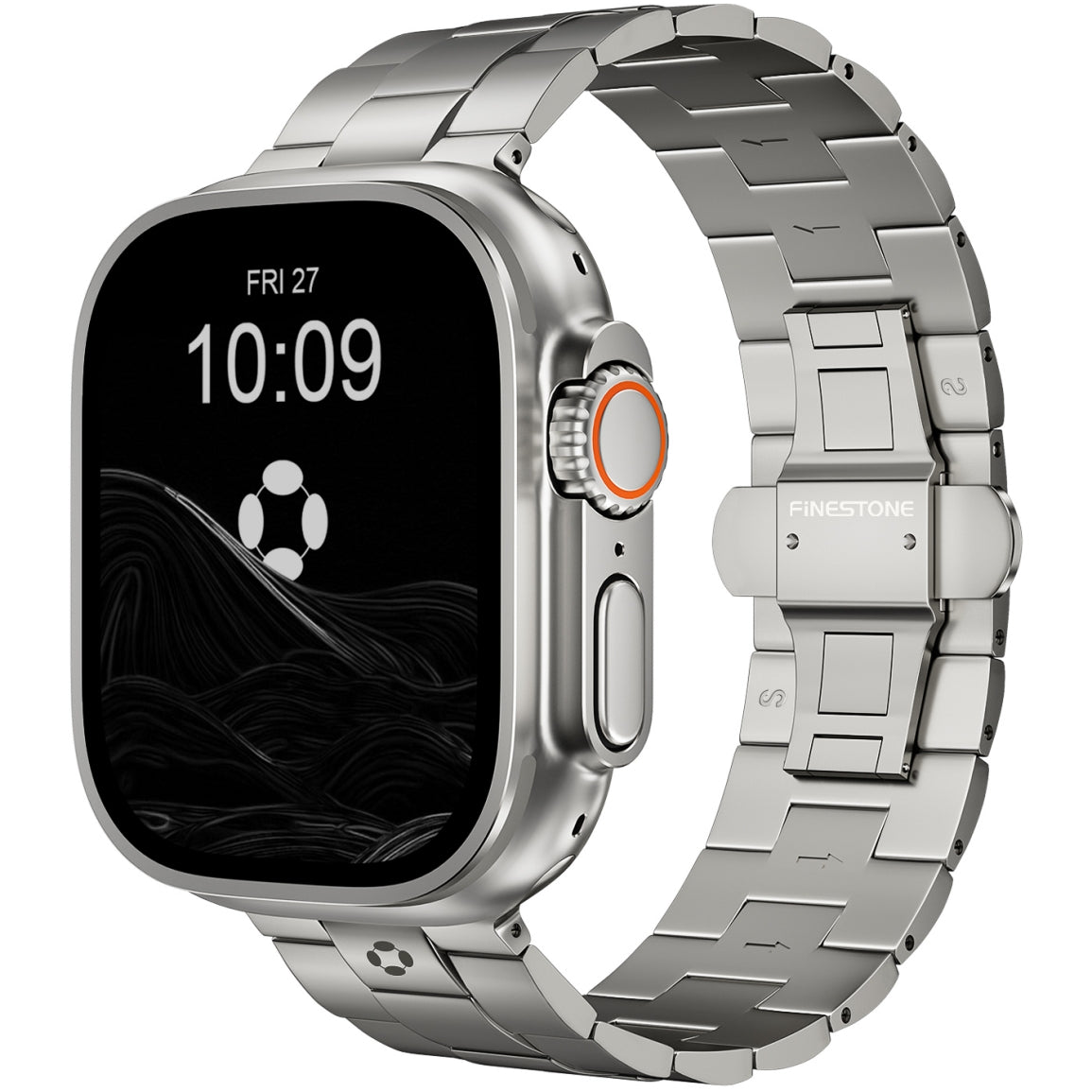
Many users eventually upgrade to more durable materials such as titanium. Lightweight titanium bands—like those offered by Finestone—provide strong durability while remaining comfortable for all-day wear, making them a practical option for users who rely on their Apple Watch throughout the day.
How Much Battery Life Can You Gain?
With optimized settings, many users report extending battery life to:
-
24–36 hours on standard models
-
Even longer when Low Power Mode is used occasionally
While the Apple Watch may not reach the multi-week battery life of some fitness trackers, proper configuration can still ensure reliable performance throughout the day.
Final Thoughts
The Apple Watch offers powerful features that make it one of the most capable smartwatches available today. However, those same features can consume significant battery power if left unchecked.
By adjusting settings such as Always-On Display, notifications, brightness, and background refresh, you can noticeably improve battery life without sacrificing the core functionality of the watch.
Small changes in daily usage can make a big difference. With the right setup, your Apple Watch can easily last through a full day—or even longer—while still delivering the health insights, productivity tools, and convenience that make it such a valuable wearable device.