
The Apple Watch is one of the most powerful and versatile smartwatches available today. For new users, however, it can feel overwhelming at first. With dozens of features—from fitness tracking and notifications to health monitoring and productivity tools—it’s easy to miss many of the functions that make the device truly useful.
The good news is that once you learn a few essential tips and tricks, the Apple Watch quickly becomes an incredibly convenient everyday companion. In this complete guide, we’ll explore the most useful Apple Watch tips and tricks every new user should know, helping you get the most out of your device from day one.
1. Customize Your Watch Face
One of the first things every Apple Watch user should do is customize the watch face. The watch face controls not only how your watch looks but also how quickly you can access useful information.
You can add complications, which are small widgets that display real-time data such as:
-
Weather updates
-
Calendar events
-
Activity rings
-
Heart rate
-
Battery level
To customize your watch face:
-
Press and hold the current watch face
-
Tap Edit
-
Swipe through customization options
-
Add complications that match your daily needs
A well-designed watch face can save time by giving you instant access to important information.
2. Use the Control Center for Quick Settings
The Apple Watch includes a Control Center that provides quick access to frequently used features.
To open it:
-
Press the side button once
From here you can quickly toggle settings such as:
-
Airplane mode
-
Silent mode
-
Do Not Disturb
-
Wi-Fi and cellular connections
-
Battery percentage
-
Flashlight
Learning to use Control Center efficiently helps you manage your watch without navigating through multiple menus.
3. Master the Digital Crown
The Digital Crown is one of the most powerful controls on the Apple Watch.
It allows you to:
-
Scroll through menus
-
Zoom in and out
-
Adjust settings
-
Return to the home screen
Pressing the Digital Crown once opens the app grid or app list, while double-pressing it switches to your most recently used app.
Using the Digital Crown instead of swiping can make navigation smoother and more precise.
4. Quickly Find Your iPhone
One of the most popular Apple Watch features is the ability to locate your iPhone instantly.
If you misplace your phone nearby:
-
Open Control Center
-
Tap the Ping iPhone icon
Your iPhone will play a sound, helping you find it quickly—even if it’s under a couch cushion.
If you press and hold the button, your phone’s flashlight will flash as well, making it even easier to locate.
5. Use Apple Pay for Faster Payments
Apple Watch supports contactless payments using Apple Pay, making it extremely convenient for quick purchases.
To pay using Apple Watch:
-
Double-click the side button
-
Select your card
-
Hold the watch near the payment terminal
This feature works in many stores, restaurants, and transit systems around the world.
Because it uses secure authentication, it’s both fast and safe.
6. Set Up Activity Goals for Motivation
The Apple Watch is widely known for its Activity Rings, which track three daily goals:
-
Move (calories burned)
-
Exercise (minutes of activity)
-
Stand (hours with movement)
For new users, adjusting activity goals can help build consistent fitness habits.
You can modify your goals by:
-
Opening the Activity app
-
Scrolling down
-
Selecting Change Goals
Setting realistic targets helps you stay motivated while gradually improving your fitness.
7. Enable Sleep Tracking
Many new users don’t realize that the Apple Watch can also track sleep patterns.
With sleep tracking enabled, the watch can monitor:
-
Sleep duration
-
Sleep stages
-
Nighttime heart rate
-
Sleep consistency
To enable it:
-
Open the Sleep app
-
Set your sleep schedule
-
Wear the watch overnight
Over time, the collected data can help you develop healthier sleep habits.
8. Use Focus and Do Not Disturb Modes
Constant notifications can quickly become distracting. Fortunately, the Apple Watch includes Focus modes that allow you to control when alerts appear.
Examples include:
-
Work Focus
-
Sleep Focus
-
Personal Focus
-
Do Not Disturb
These modes help reduce interruptions while still allowing important notifications to come through.
9. Organize Your Apps
The Apple Watch allows you to arrange apps in two different layouts:
-
Grid view (icon-based layout)
-
List view (alphabetical list)
Many users find List View easier to navigate, especially when they install many apps.
You can change the layout in the Watch settings under App View.
Keeping your apps organized makes navigation much faster.
10. Choose the Right Watch Band for Daily Comfort
Many new Apple Watch users underestimate how important the watch band is for everyday comfort. Because the watch is designed to be worn for long periods—including workouts and sometimes even sleep—the band plays a big role in overall usability.
Different bands suit different situations:
-
Sport bands for workouts
-
Fabric bands for casual comfort
-
Metal bands for professional settings
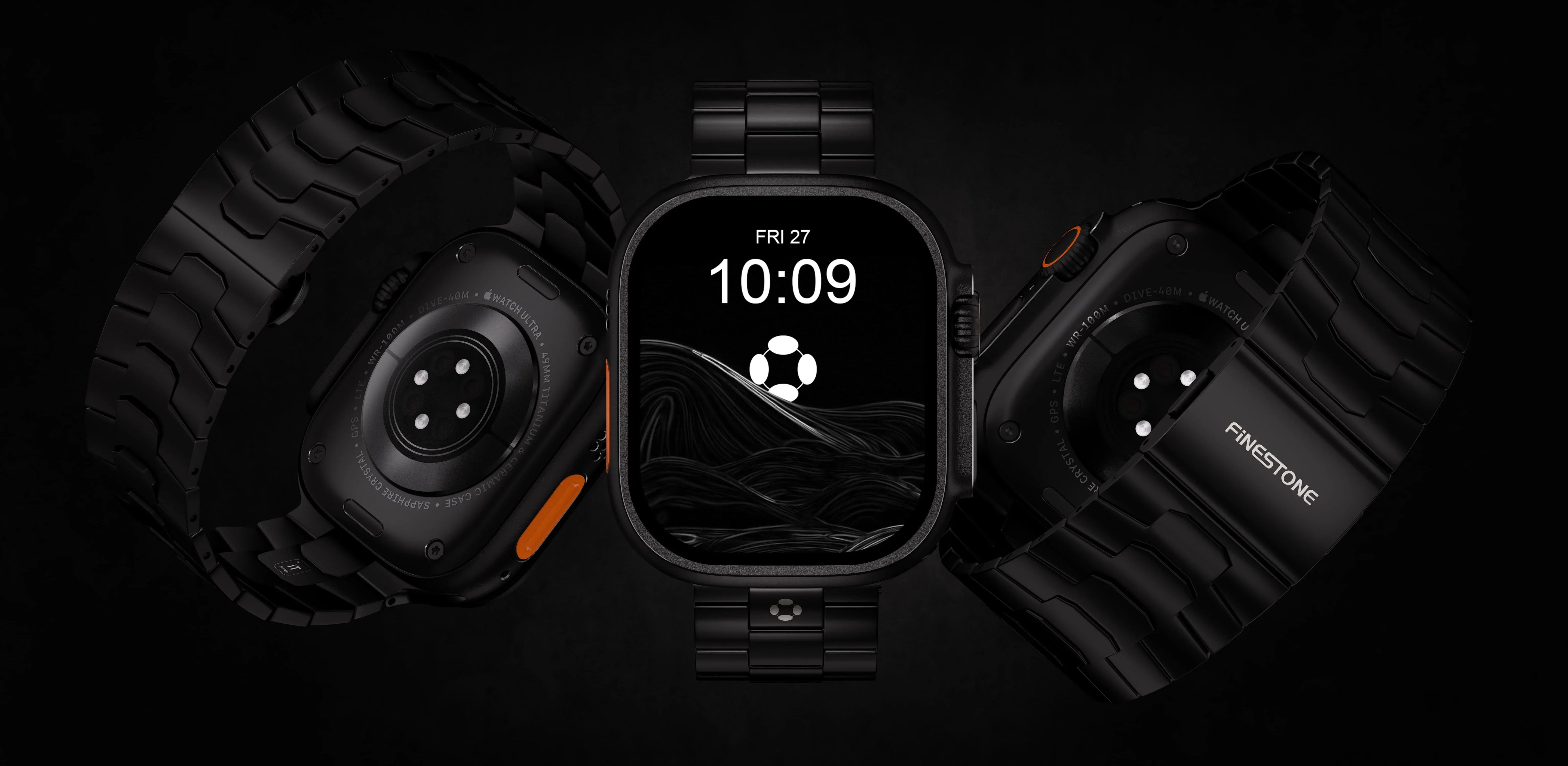
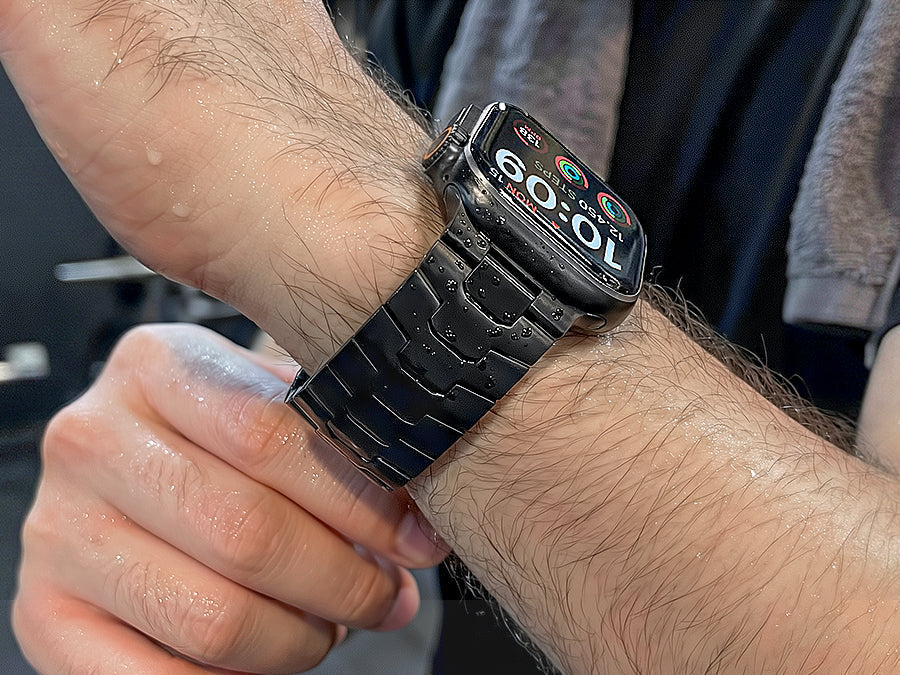
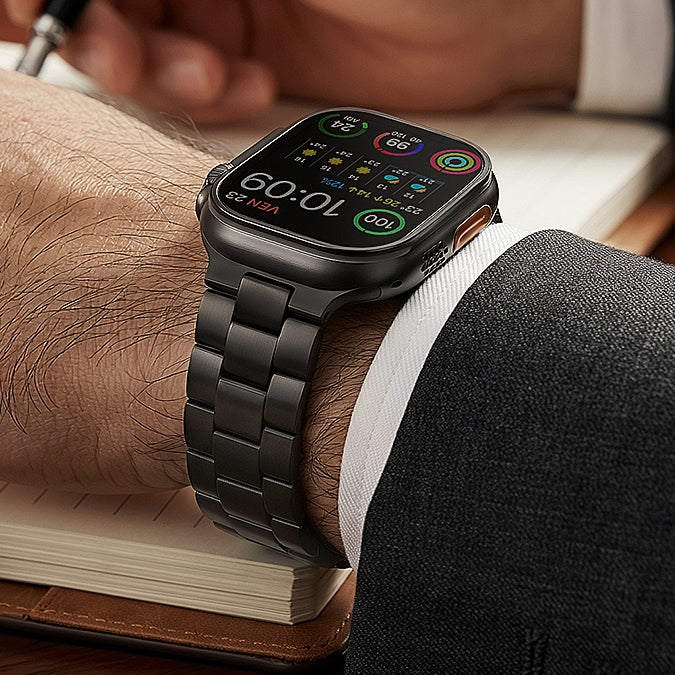
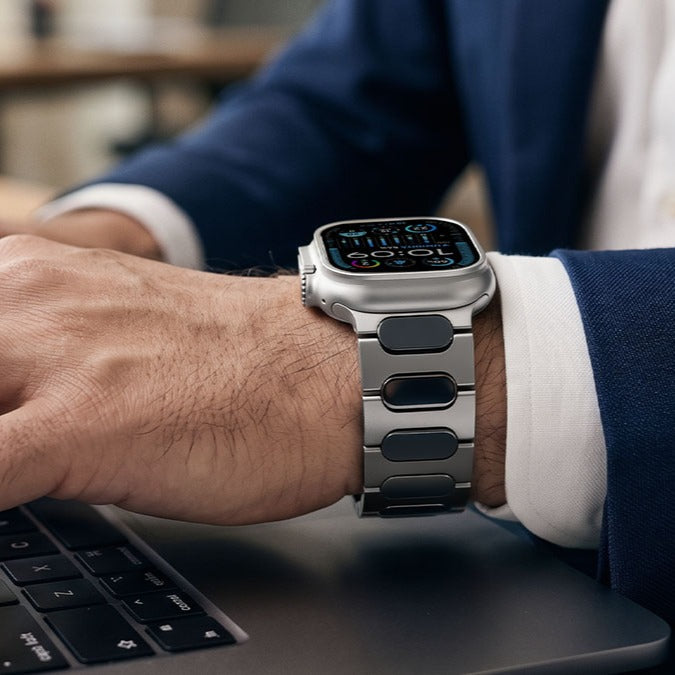
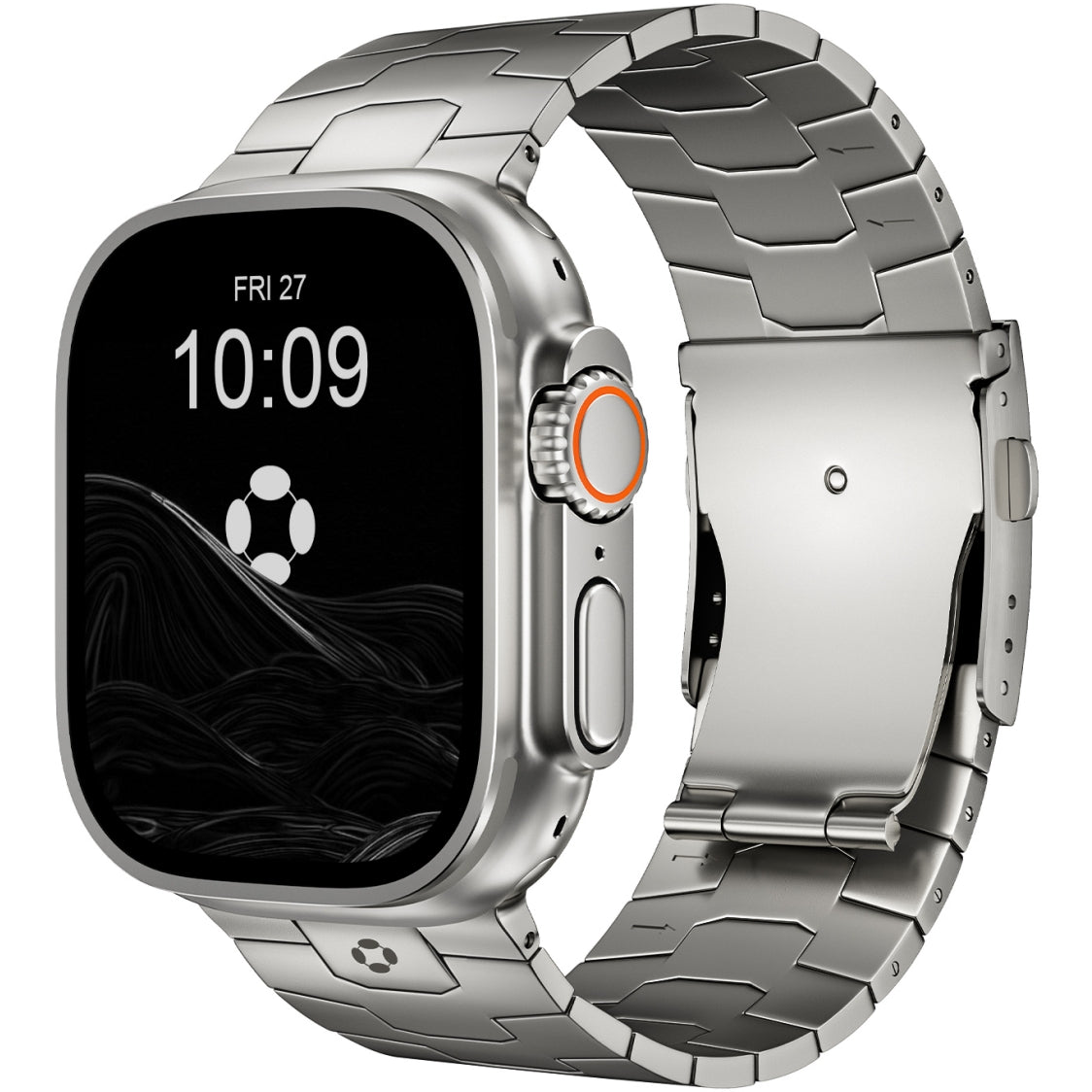
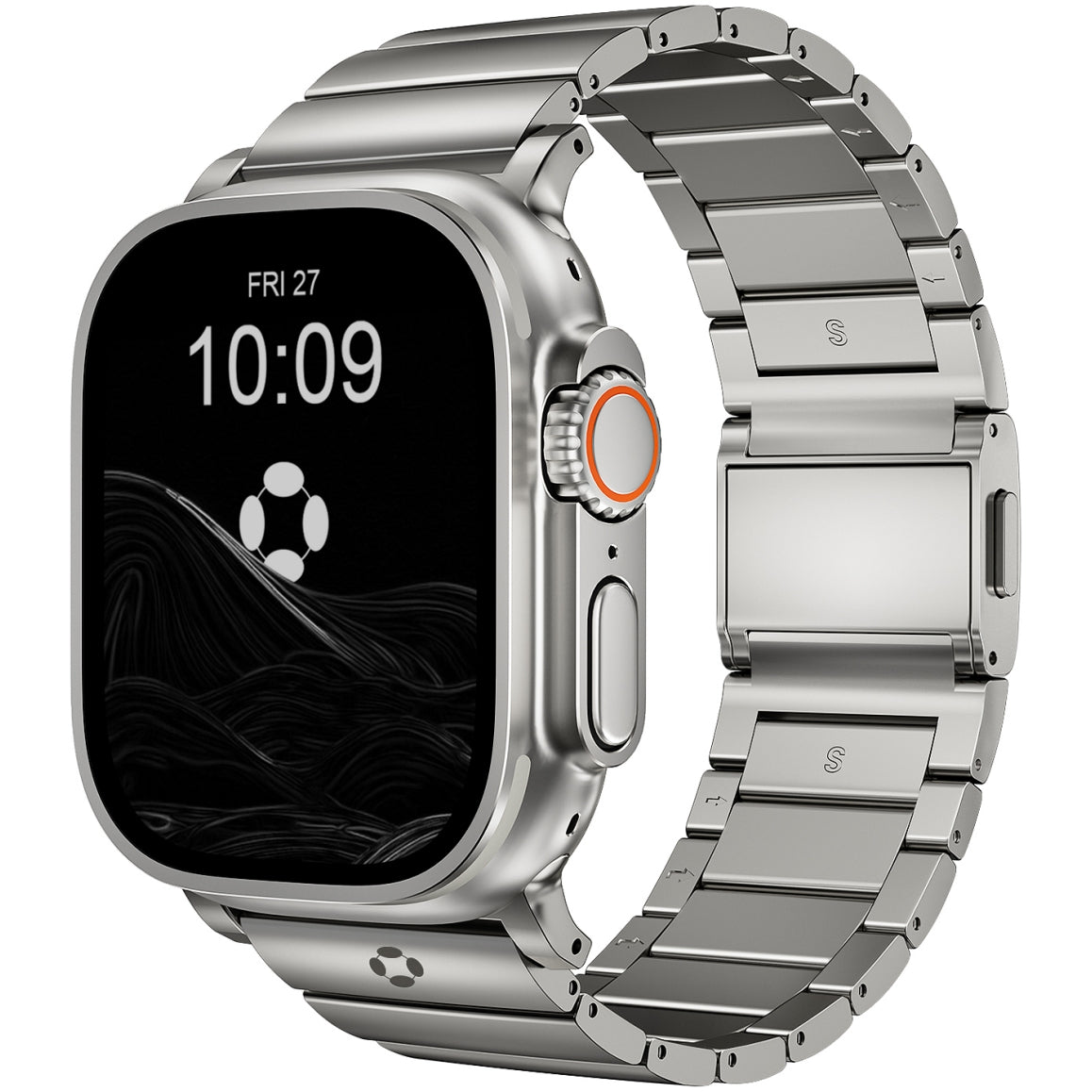
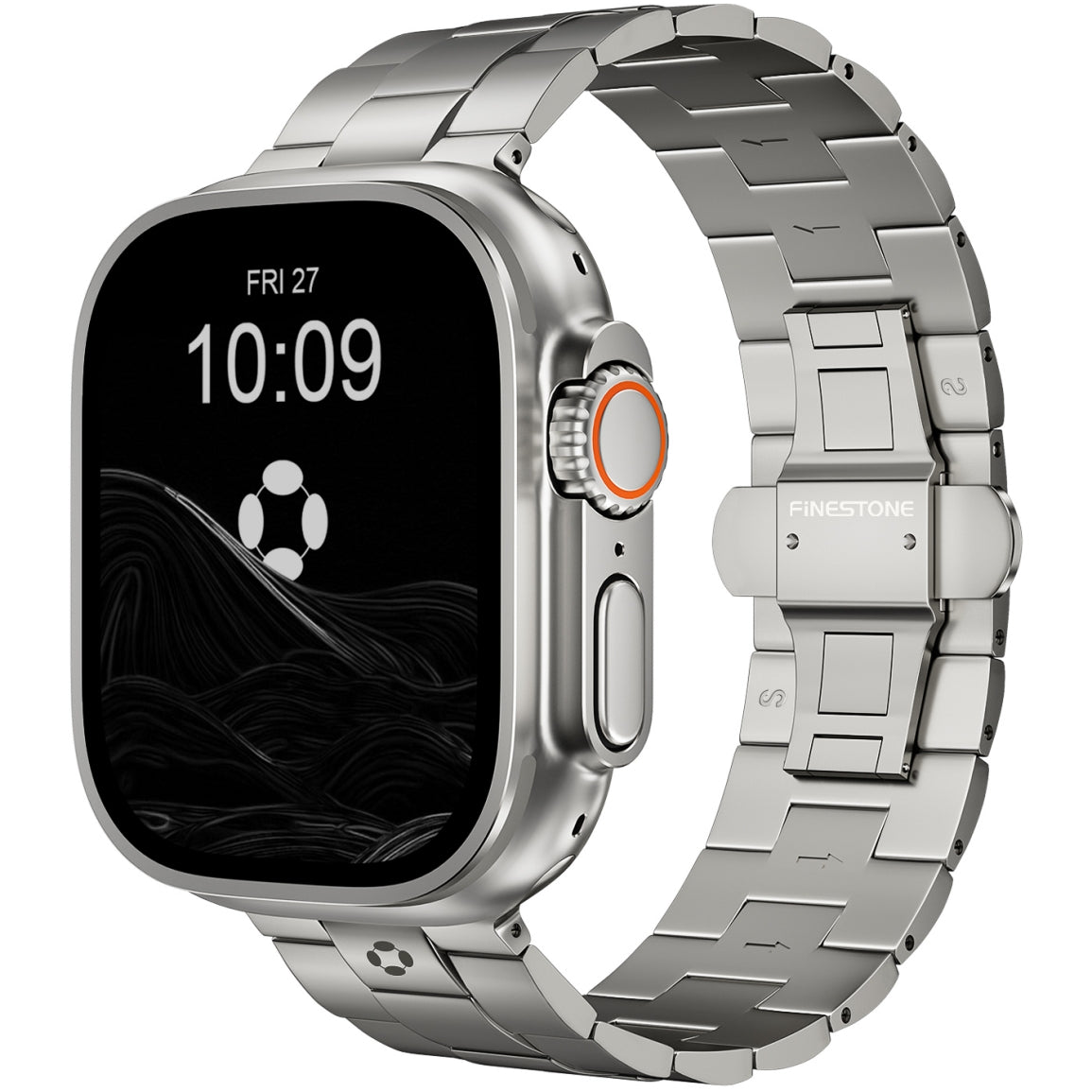
Some users prefer lightweight metal options for durability and style. Titanium bands, for example, provide an excellent balance of strength and comfort. Premium titanium bands like those offered by Finestone are popular among Apple Watch users who want a durable yet lightweight band that complements the watch’s modern design.
Choosing the right band can make wearing the Apple Watch feel much more natural throughout the day.
Bonus Tip: Keep Your Apple Watch Updated
Apple frequently releases watchOS updates that introduce new features, bug fixes, and performance improvements.
Updating regularly ensures you always have access to:
-
Improved health features
-
New watch faces
-
Better battery optimization
-
Enhanced security
To check for updates, open the Watch app on your iPhone and navigate to General → Software Update.
Final Thoughts
The Apple Watch is packed with powerful features, but many of its best capabilities are easy to overlook when you first start using it. By learning a few simple tips and tricks—like customizing watch faces, using Apple Pay, organizing apps, and optimizing notifications—you can dramatically improve your overall experience.
For new users, the key is experimentation. The more you explore the watch’s features and personalize its settings, the more useful it becomes in everyday life.
Over time, the Apple Watch evolves from a simple gadget into a personal assistant, fitness tracker, and health companion all in one device.