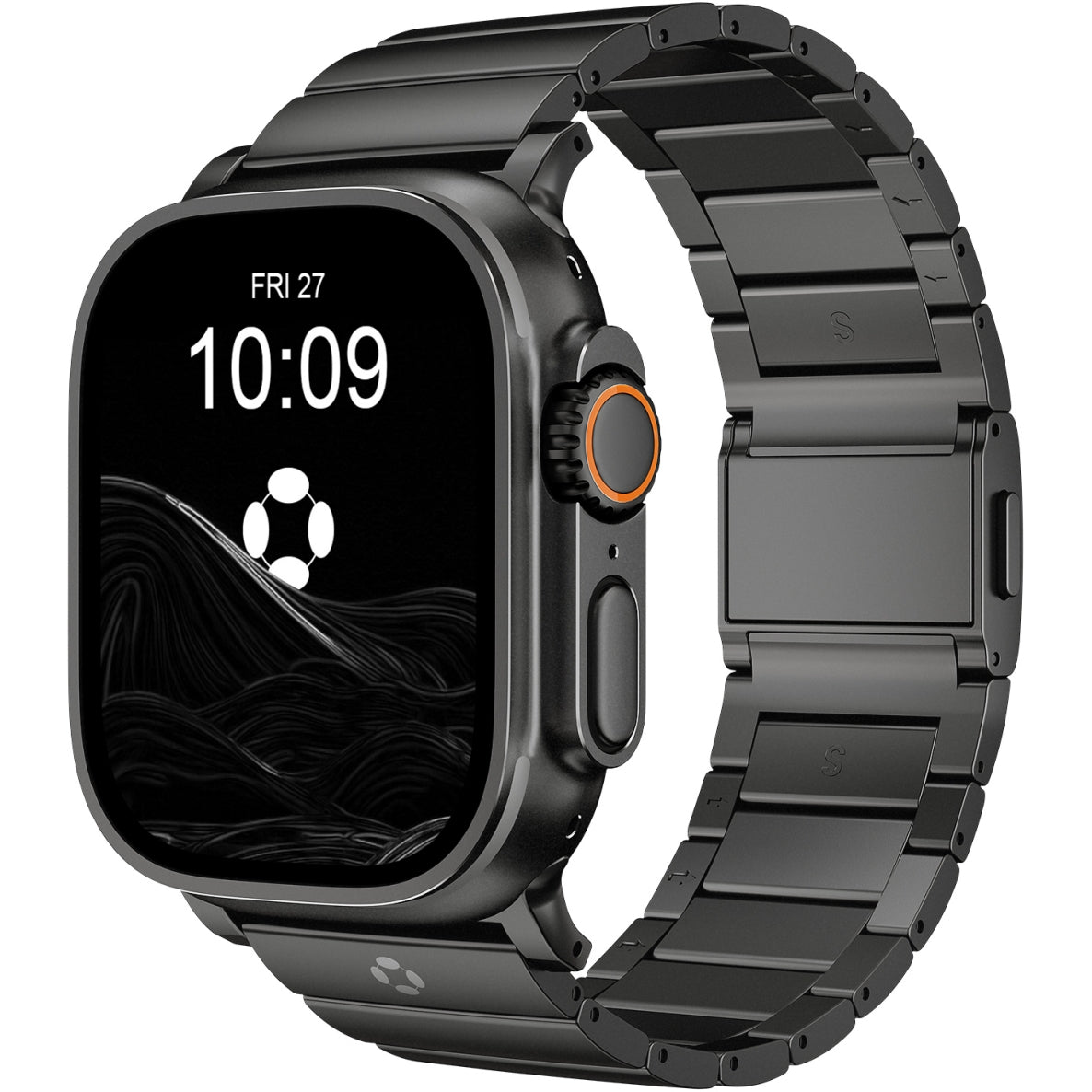

There may come a time when you need to reset your Apple Watch to its factory settings. Whether you're troubleshooting a problem, preparing to sell or give away your device, or simply want to erase all data for privacy reasons, a factory reset is a simple yet powerful solution. In this guide, we’ll walk you through everything you need to know about factory resetting your Apple Watch. We’ll also explain how to restore your watch afterward, if necessary, and discuss what happens when you perform a factory reset.
Why You Might Need to Factory Reset Your Apple Watch
A factory reset restores your Apple Watch to its original state, erasing all personal data, settings, and configurations. This process is particularly useful in the following scenarios:
-
Troubleshooting: If your Apple Watch is malfunctioning or has persistent bugs that cannot be fixed by a simple restart.
-
Selling or Giving Away: If you’re parting ways with your Apple Watch, it’s essential to erase all personal data to protect your privacy.
-
Syncing Issues: If your Apple Watch isn’t syncing correctly with your iPhone, a factory reset can help start fresh.
-
Password or Lock Issues: If you’ve forgotten your password or your watch is locked and you’re unable to unlock it.
Performing a factory reset will remove everything, including apps, settings, and data like messages or health information, so it’s important to back up your device if you plan to restore it later.
How to Factory Reset Your Apple Watch: Step-by-Step Guide
Method 1: Factory Reset Using the Apple Watch (Without an iPhone)
If you don’t have your iPhone handy or if you want to reset your Apple Watch directly from the device, follow these steps:
-
Ensure Your Apple Watch is Charged: Before starting the reset, make sure your Apple Watch is charged or connected to a charger. A low battery could interrupt the process.
-
Open the Settings App: On your Apple Watch, tap the Settings app, which looks like a gear icon.
-
Go to General: Scroll down and tap on General in the settings menu.
-
Scroll to Reset: At the bottom of the General menu, tap on Reset.
-
Erase All Content and Settings: Tap Erase All Content and Settings. If you have a passcode set on your Apple Watch, you’ll be prompted to enter it.
-
Confirm the Reset: You will be asked to confirm that you want to erase all data and settings. Tap Erase All to proceed. The Apple Watch will begin the process of resetting, which may take several minutes.
-
Wait for the Apple Watch to Reset: Your Apple Watch will display the Apple logo and then the spinning progress wheel. When the reset is complete, your watch will be restored to its factory settings, and you’ll see the initial setup screen.
Method 2: Factory Reset Using the iPhone (If Your Apple Watch is Paired)
If you have your iPhone nearby and it’s still paired with your Apple Watch, you can also factory reset it using the Watch app on your iPhone:
-
Open the Watch App: Launch the Watch app on your paired iPhone.
-
Go to My Watch: Tap on the My Watch tab at the bottom of the screen.
-
Tap on All Watches: At the top of the screen, tap on All Watches.
-
Select Your Apple Watch: Tap on the Apple Watch that you want to reset.
-
Unpair Your Apple Watch: Tap Unpair Apple Watch. You may be asked to confirm this action and enter your Apple ID password to disable Activation Lock (which is required when re-pairing the watch with another device).
-
Confirm and Erase: The iPhone will automatically back up your Apple Watch settings before resetting it. You will also be given an option to keep or erase your data. Tap Erase All Content and Settings to complete the reset.
-
Wait for the Unpairing Process: Once the reset is complete, your Apple Watch will restart and show the setup screen.
What Happens When You Factory Reset Your Apple Watch?
A factory reset will erase everything on your Apple Watch, including:
-
Personal data: All apps, messages, photos, health data, and any other personal information stored on the watch.
-
Settings: All preferences and configurations, including your Wi-Fi networks, watch faces, and notifications.
-
Bluetooth connections: All paired Bluetooth devices, including your iPhone, will be forgotten.
In short, after a factory reset, your Apple Watch will be like it was when it was brand new, with no data or settings saved. If you plan to use the device again, you will need to re-pair it with your iPhone and set it up from scratch.
How to Restore Your Apple Watch After a Factory Reset
If you want to restore your Apple Watch after performing a factory reset, there are two main methods:
1. Restore from iCloud Backup (Using the iPhone)
If you’ve previously backed up your Apple Watch to iCloud, you can restore all your data and settings after setting up the watch again:
-
Pair Your Apple Watch with iPhone: Open the Watch app on your iPhone and follow the on-screen instructions to pair your Apple Watch.
-
Restore from Backup: During the setup process, you’ll be prompted to restore from an iCloud backup. Choose the backup you want to restore from, and your watch will sync all your apps, settings, and data from the cloud.
2. Restore from a Local Backup (Using the iPhone)
If you back up your iPhone locally using iTunes or Finder (on macOS), your Apple Watch data should also be included in the backup. You can restore your watch from this local backup in the same way as the iCloud backup process.
What to Do Before You Reset Your Apple Watch
Before performing a factory reset, it’s important to take a few precautions:
-
Back Up Your Data: If you plan to restore your watch later, make sure to back up your Apple Watch data using iCloud or iTunes/Finder. This includes your apps, settings, health data, and other personal information.
-
Unpair Your Apple Watch (if needed): If you’re planning to give away or sell your Apple Watch, make sure to unpair it from your iPhone first to prevent the new owner from being locked out of the watch due to Activation Lock.
-
Sign Out of Your Apple ID: If you’re selling or giving away your watch, ensure that you sign out of your Apple ID to prevent the new user from having issues with Apple services.