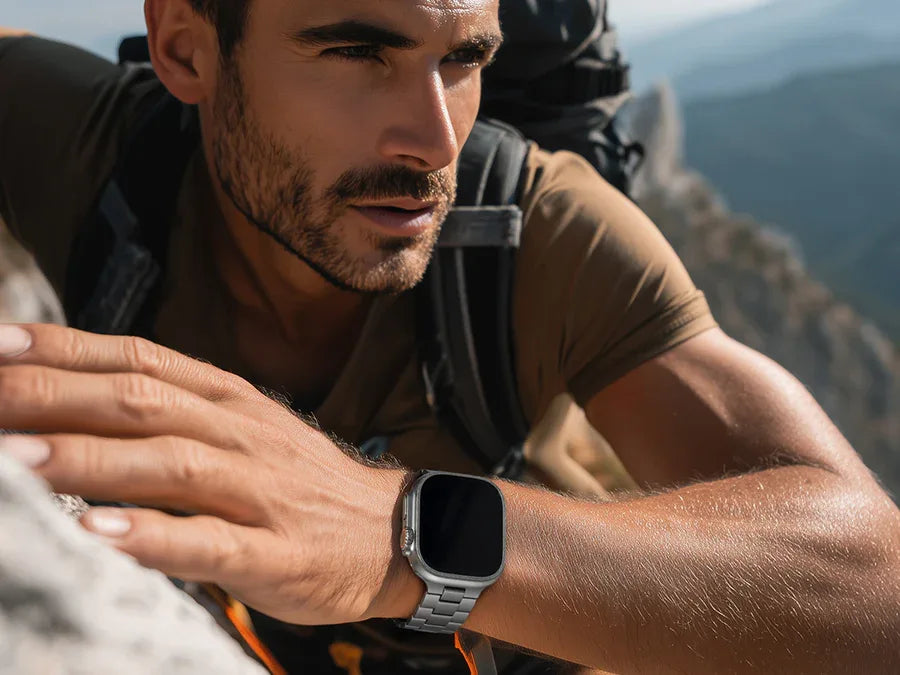

Even the best technology encounters hiccups. The Apple Watch is renowned for its reliability, but like any sophisticated device, it can sometimes behave unexpectedly. Whether you own the latest Series 11, the rugged Ultra 3, or the budget-friendly SE, knowing how to troubleshoot common issues can save you time, frustration, and potentially a trip to the service center.
This guide covers the most frequent Apple Watch problems users face in 2026 and provides clear, step-by-step fixes that actually work.
1. Battery Draining Too Fast
Poor battery life is perhaps the most common complaint among Apple Watch users. If your watch can't make it through the day, try these solutions.
Check for Recent Updates
After a watchOS update, battery drain is often temporary. The system performs background tasks like re-indexing data, which can consume extra power for 24-48 hours . Wait a couple of days before panicking.
Enable Low Power Mode
Low Power Mode extends battery life by disabling Always-On Display, background heart rate measurements, and some connectivity features . Access it via Control Center (press side button) > battery percentage button.
Adjust Display Settings
The Always-On Display is convenient but power-hungry. Disable it via Settings > Display & Brightness > Always On . You can also reduce motion and transparency effects in Settings > Accessibility > Reduce Motion to decrease processor load .
Manage Background App Refresh
Background App Refresh allows apps to update data when you're not using them. Navigate to Settings > General > Background App Refresh and disable it for non-essential apps like weather or news services .
Keep iPhone Nearby When Possible
Your Apple Watch operates most efficiently when connected via Bluetooth to your iPhone. When separated, it uses more power searching for or maintaining cellular or Wi-Fi connections .
2. Apple Watch Not Charging
A watch that won't charge can disrupt your entire routine. Here's how to fix it.
Clean the Contacts
Dirt, sweat, and lotion buildup on the back of your watch or the charger can block the inductive connection . Use a soft, dry, lint-free cloth to wipe both surfaces .
Check Alignment
The Apple Watch uses magnetic charging, so proper alignment matters. Adjust the watch until it snaps securely into place .
Wait for the Icon
If your battery is completely drained, it may take up to 30 minutes for the charging icon to appear . Don't assume it's broken if you don't see immediate results.
Force Restart
Hold both the side button and Digital Crown for at least 10 seconds until the Apple logo appears . This can resolve software glitches preventing charging.
Check Power Source
Low-wattage USB ports (like those on older computers) may not provide sufficient power. Try a different wall adapter or cable .
3. Frozen Screen or Unresponsive Device
When your watch becomes unresponsive, a force restart usually resolves the issue without data loss.
Force Restart
Press and hold both the Digital Crown and the side button simultaneously for at least 10 seconds. Release when the Apple logo appears . This works on all Apple Watch models.
Storage Management
If your watch feels consistently slow, check storage via the iPhone Watch app > General > Usage. Aim to keep at least 500MB-1GB free for optimal performance . Delete unused apps, photos, or music.
4. Heart Rate Sensor or Activity Tracking Issues
Inaccurate readings can be frustrating for fitness enthusiasts.
Clean the Sensor
Dirt, sweat, or lotion on the back crystal can interfere with sensor accuracy . Clean the sensor area with a slightly damp, lint-free cloth and dry thoroughly.
Ensure Proper Fit
The watch should sit snugly above your wrist bone—not too tight, not too loose . It should stay in place during movement but allow skin to breathe. If you have tattoos or scars on your wrist, they can sometimes interfere with optical sensors .
Calibrate Your Watch
For improved distance and pace accuracy, perform a 20-minute outdoor walk or run with GPS enabled . This helps the watch learn your stride length and movement patterns.
5. Connection Problems with iPhone
When your Apple Watch won't communicate properly with your iPhone, try these steps.
Toggle Airplane Mode
On both devices, turn Airplane Mode on, wait 30 seconds, then turn it off. This often resets wireless connections .
Restart Both Devices
A simple restart resolves many connectivity issues. Restart both your iPhone and Apple Watch before trying more complex solutions.
Unpair and Re-Pair
If problems persist, unpairing and re-pairing fixes 90% of persistent connection issues . Open the Watch app on iPhone, tap your watch, tap the "i" icon, and select "Unpair Apple Watch." This automatically creates a backup. After unpairing, restart both devices and pair again, choosing "Restore from Backup."
Check for Updates
Ensure both devices are running the latest software. Go to the Watch app on iPhone > General > Software Update . Updates often include connectivity fixes.
6. Stuck on Apple Logo
If your watch displays the Apple logo continuously and won't start, force restart is your first step . If that doesn't work, you may need to unpair and re-pair, which erases the watch and restores from backup .
For severe software corruption, professional service may be required, as Apple Watches cannot be restored at home like iPhones .
7. Emergency SOS Not Working
In February 2026, Apple released watchOS 11.6.2 addressing a critical bug that affected emergency calls on cellular models in certain regions .
Keep Software Updated
Always install the latest watchOS updates to ensure critical safety features function correctly. Go to Watch app > General > Software Update .
Prevention: The Best Fix
Many common problems can be prevented with good habits.
Regular Cleaning
Clean your watch and band regularly, especially after workouts . Use a nonabrasive, lint-free cloth lightly dampened with fresh water. For disinfecting, 70% isopropyl alcohol wipes are safe for exterior surfaces (avoid fabric bands) .
Proper Charging Habits
Avoid letting the battery fully drain frequently. Try to recharge when it hits 20-30% to preserve long-term battery health .
Update Wisely
Consider waiting a week or two before installing major watchOS updates, allowing time for Apple to address any initial bugs .
Choose the Right Band for Comfort
Skin irritation is a common but preventable issue. Keeping your watch and band clean and dry is essential, especially after exposure to sweat, soap, or lotions . The right fit—not too tight, with room for skin to breathe—maximizes comfort .
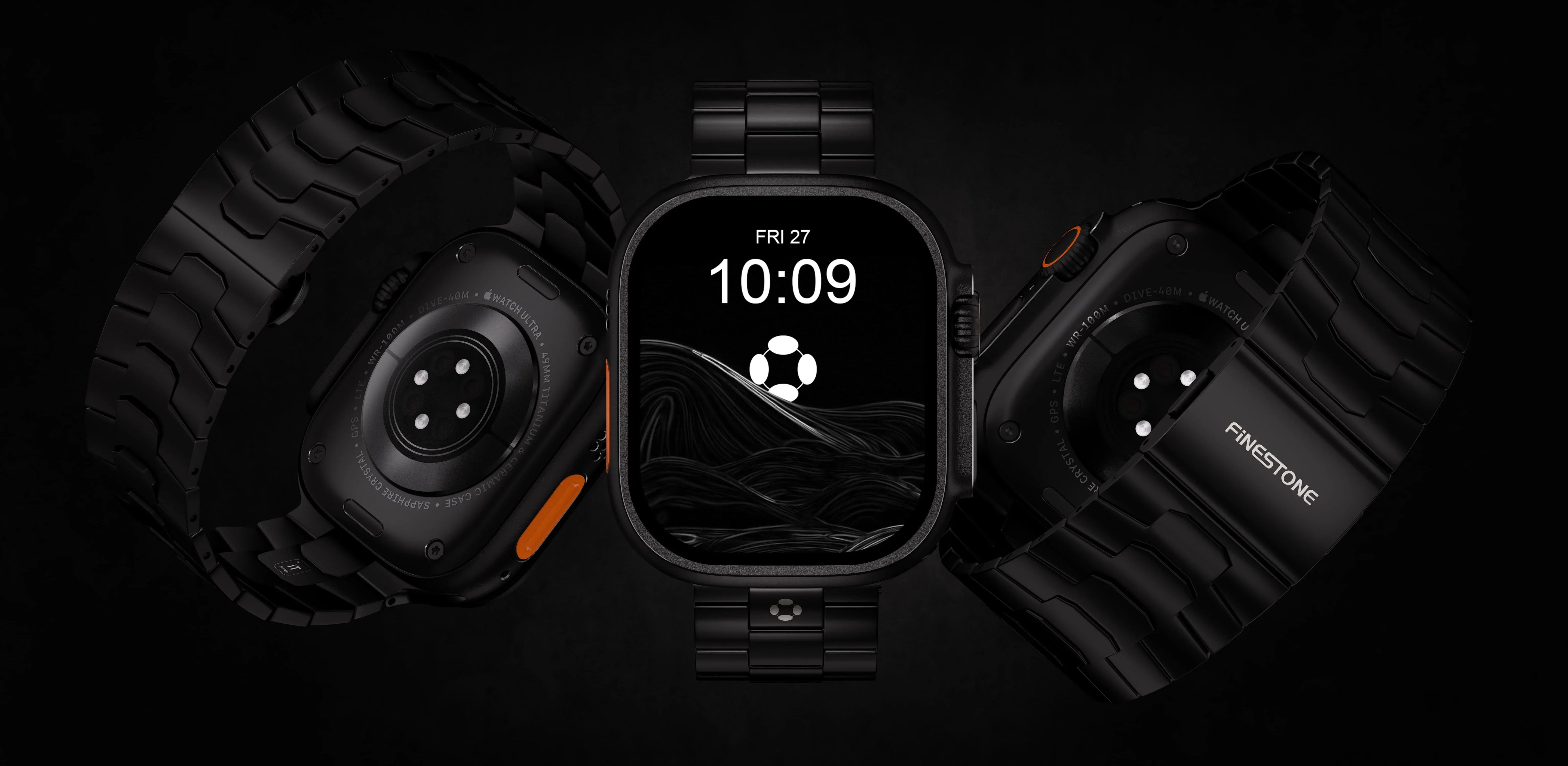
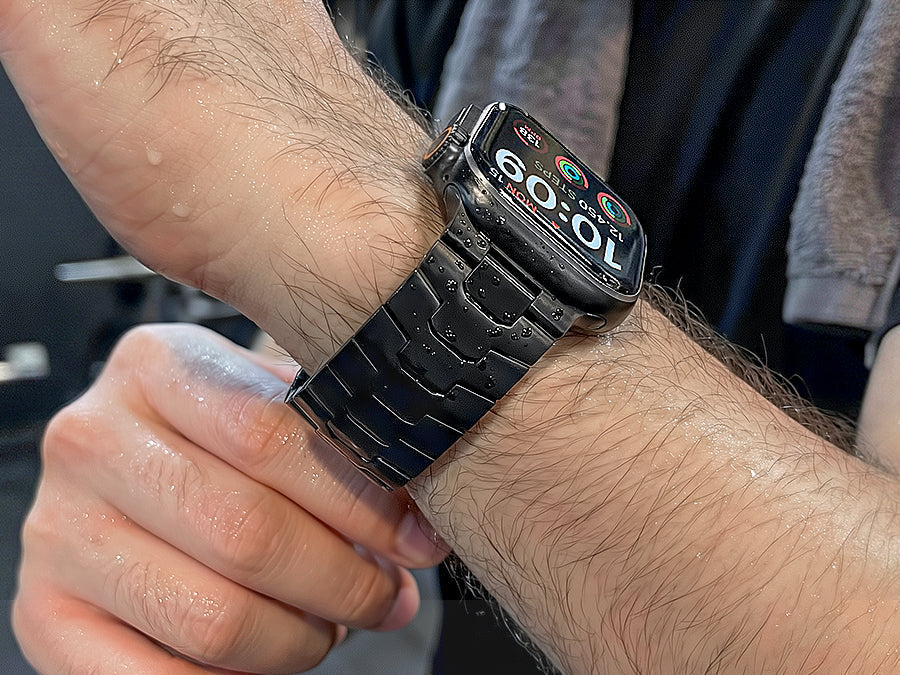
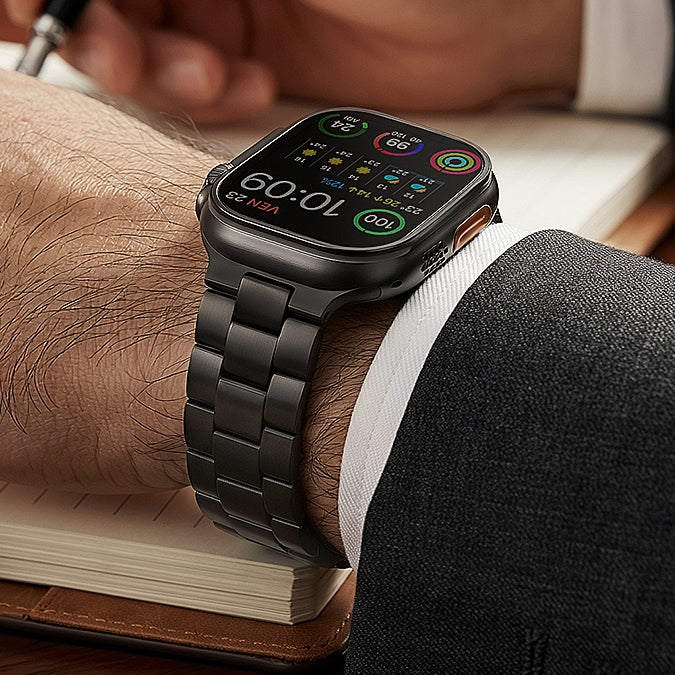
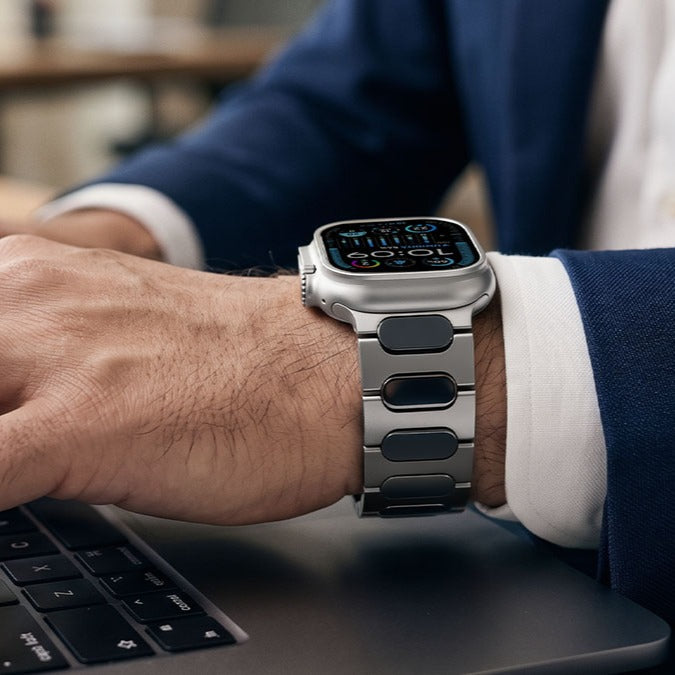
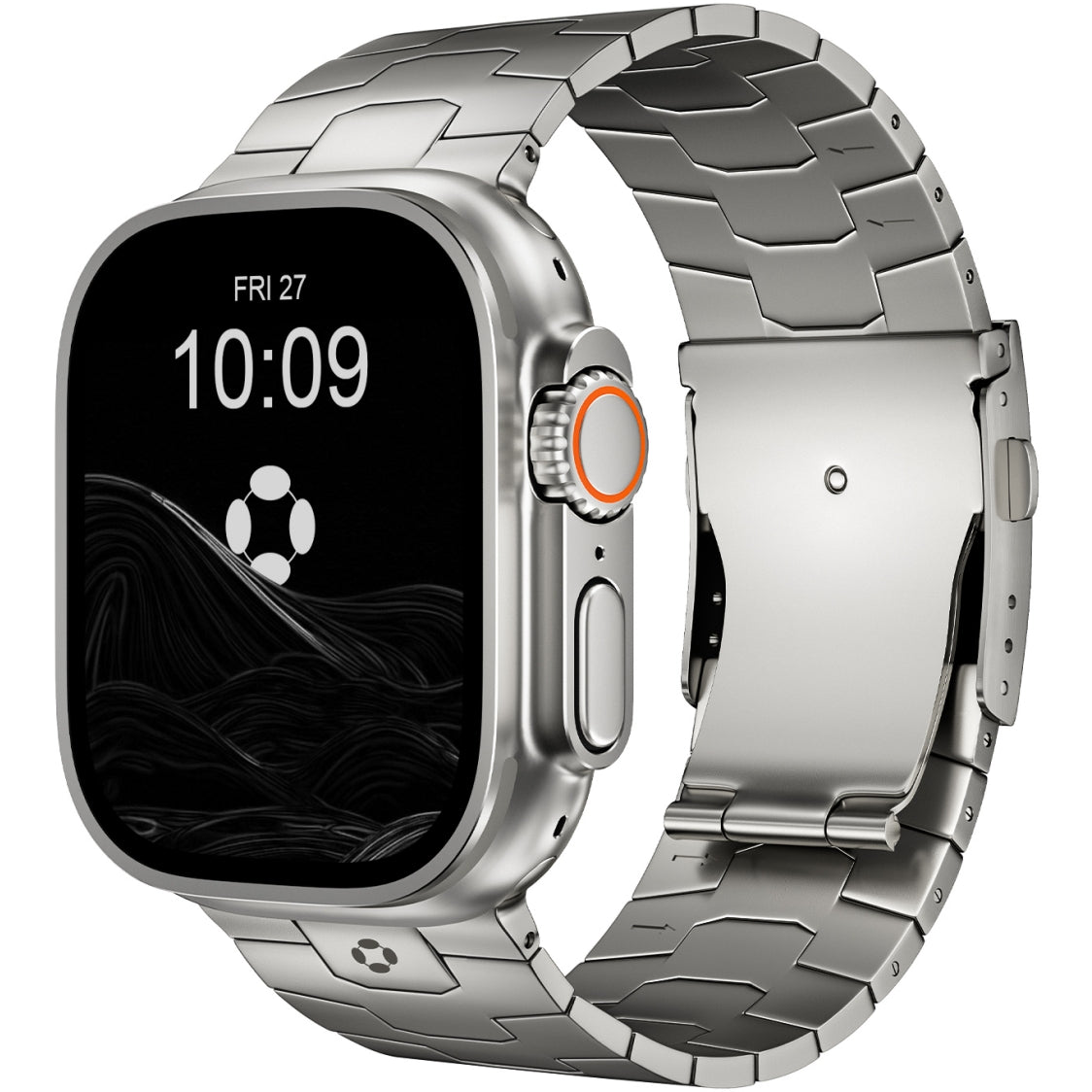
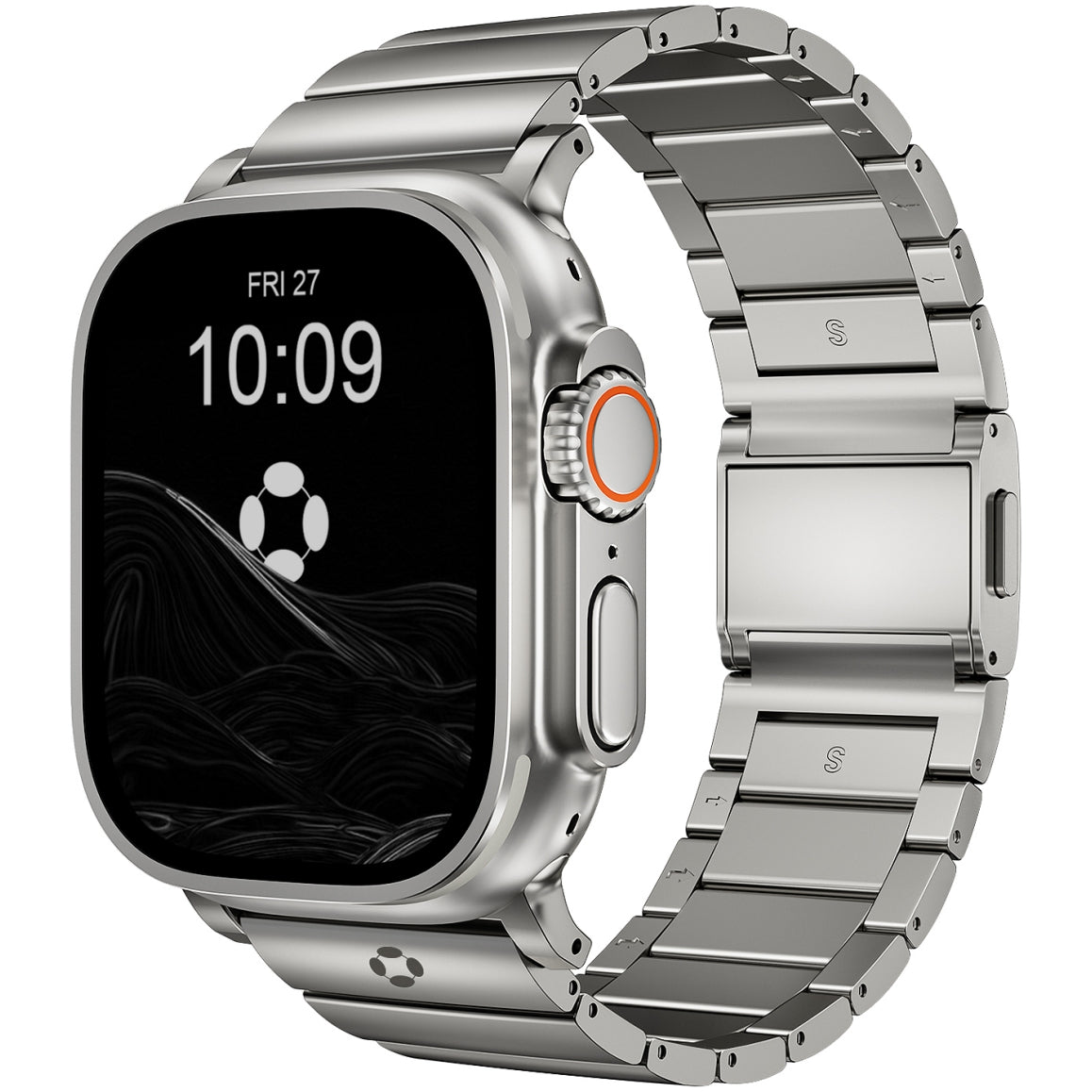
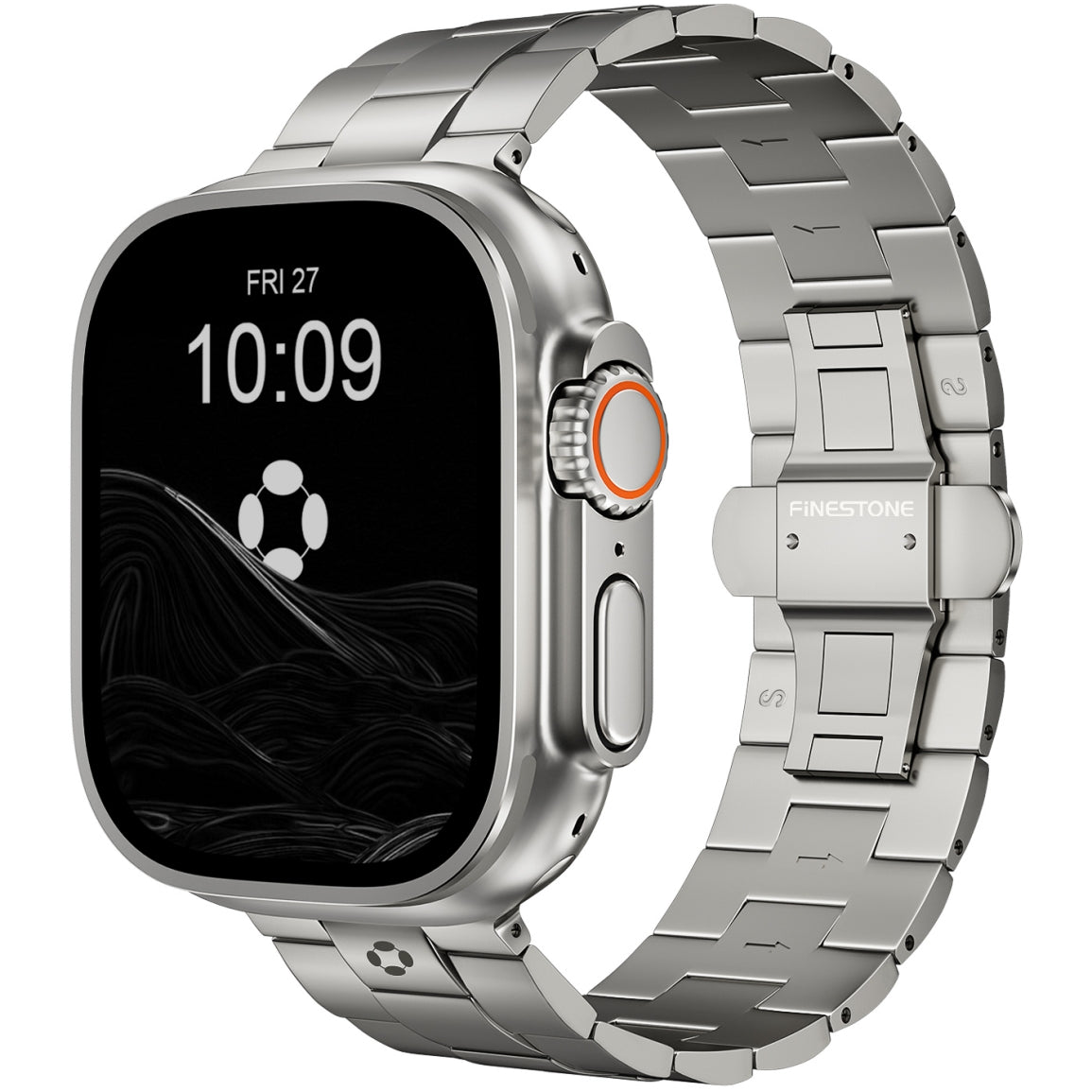
For users who experience irritation from standard bands or simply want a more comfortable all-day wear experience, premium bands offer a solution. The FiNESTONE Titanium Band features a smooth DLC coating that is gentle on skin and a secure folding clasp that maintains proper fit without overtightening. Its lightweight construction and breathable design make it ideal for both active use and daily wear, helping to prevent the moisture buildup that can lead to irritation.
When to Seek Professional Help
Some issues require expert attention. Contact Apple Support or visit an authorized service provider if :
-
Your watch won't charge after trying all troubleshooting steps
-
Battery health is significantly degraded (below 80% maximum capacity)
-
Physical damage is visible (cracked screen, water damage)
-
The watch gets unusually hot during normal use
-
Software issues persist after force restart and re-pairing
Conclusion
Most Apple Watch problems have simple solutions. Battery drain often resolves itself or responds to setting adjustments. Charging issues usually stem from dirty contacts or alignment. Frozen screens yield to force restarts. Connection problems frequently fix with unpairing and re-pairing.
The key is to troubleshoot systematically—starting with the simplest solutions before escalating to more complex fixes. And remember, prevention through regular cleaning, smart charging habits, and timely software updates will keep your Apple Watch running smoothly for years to come.
With proper care and the right accessories—like a comfortable, high-quality band such as FiNESTONE—your Apple Watch will remain a reliable companion for workouts, daily tasks, and everything in between.